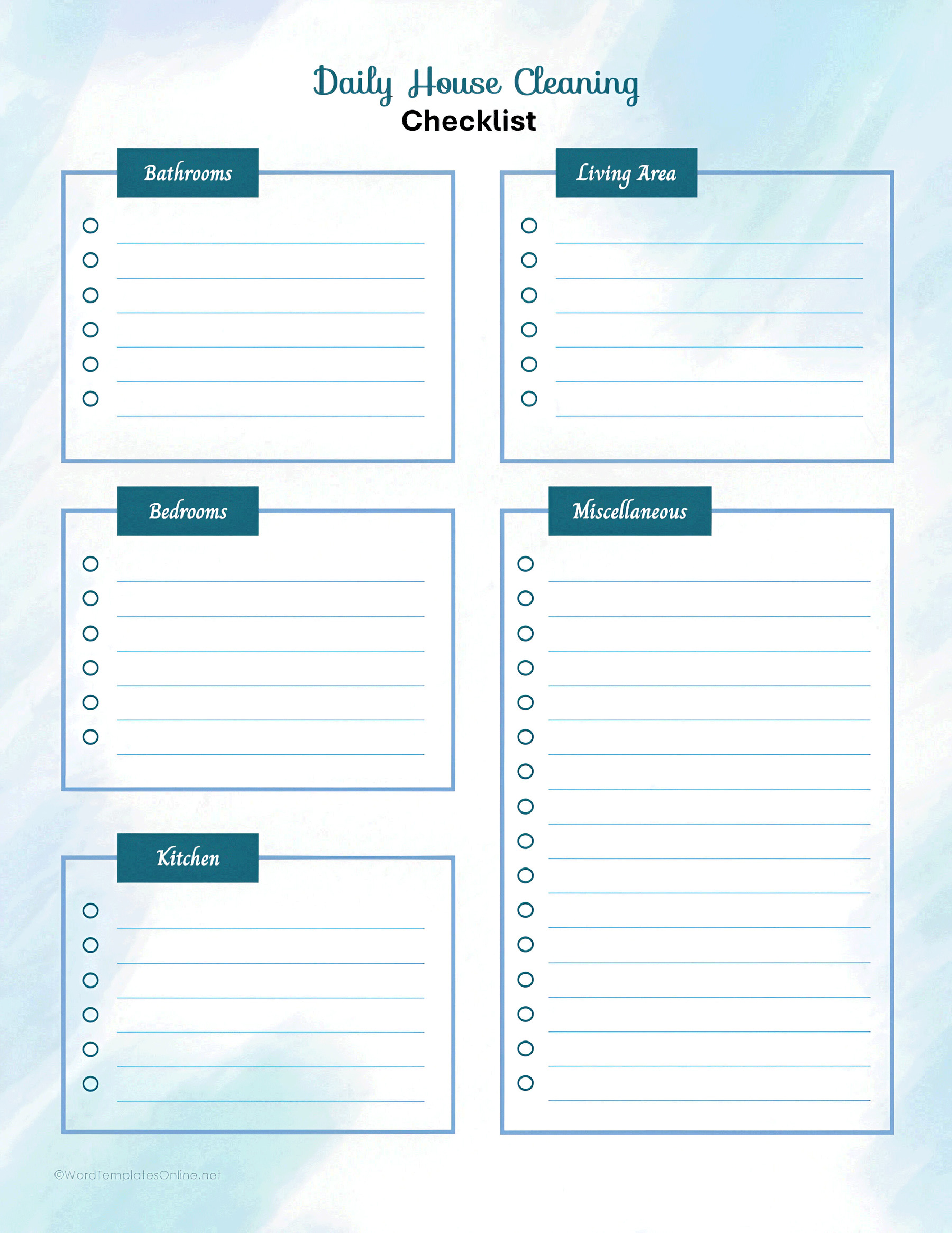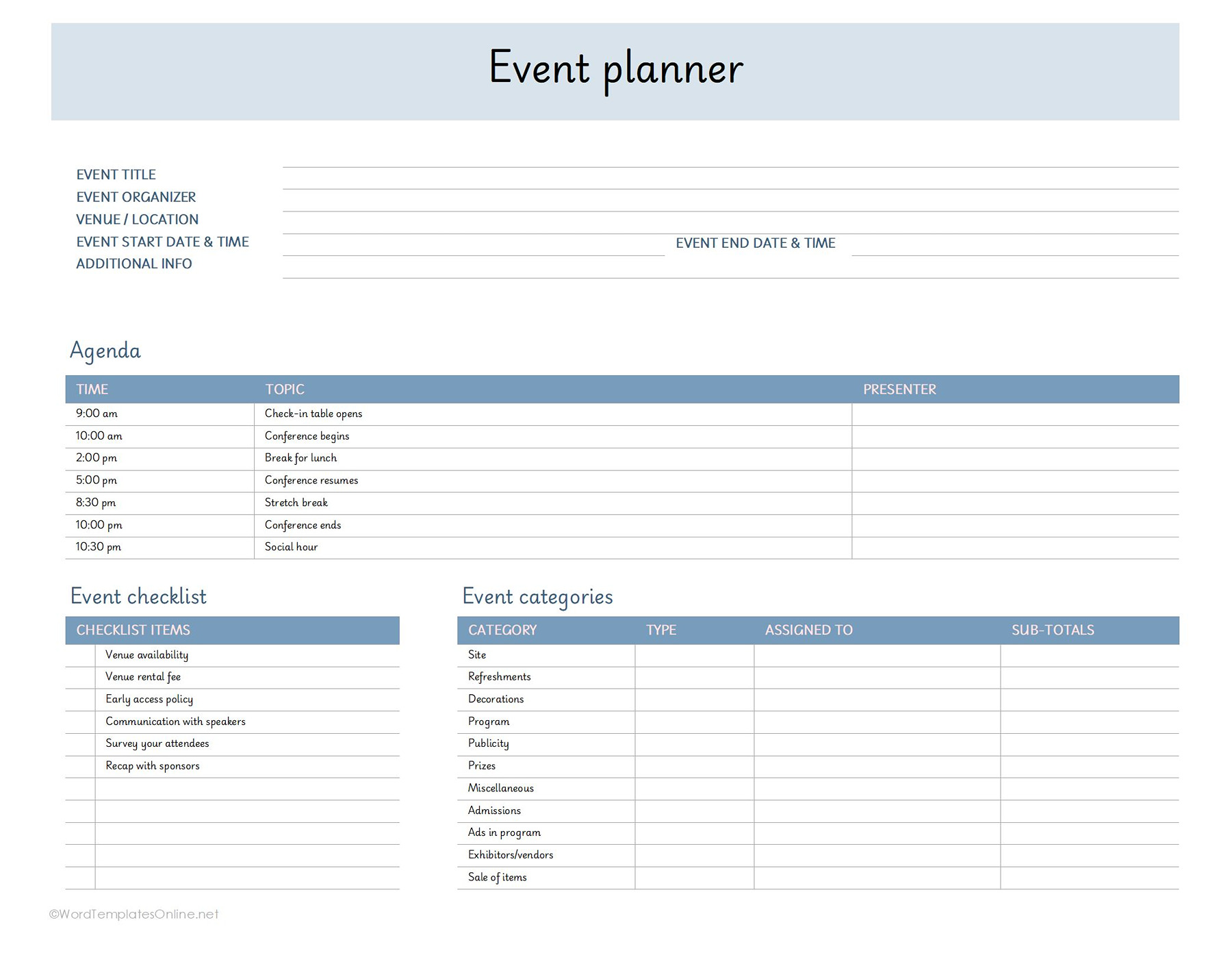
An onboarding checklist needs to show who is handling the next task and what has actually happened. These six spreadsheets give you places to record that work for a new employee, client or customer. Each is available in XLS, XLSX and Google Sheets. You update the entries yourself; the supplied files do not calculate progress or send reminders.
Onboarding Checklist 01
Onboarding Checklist 02
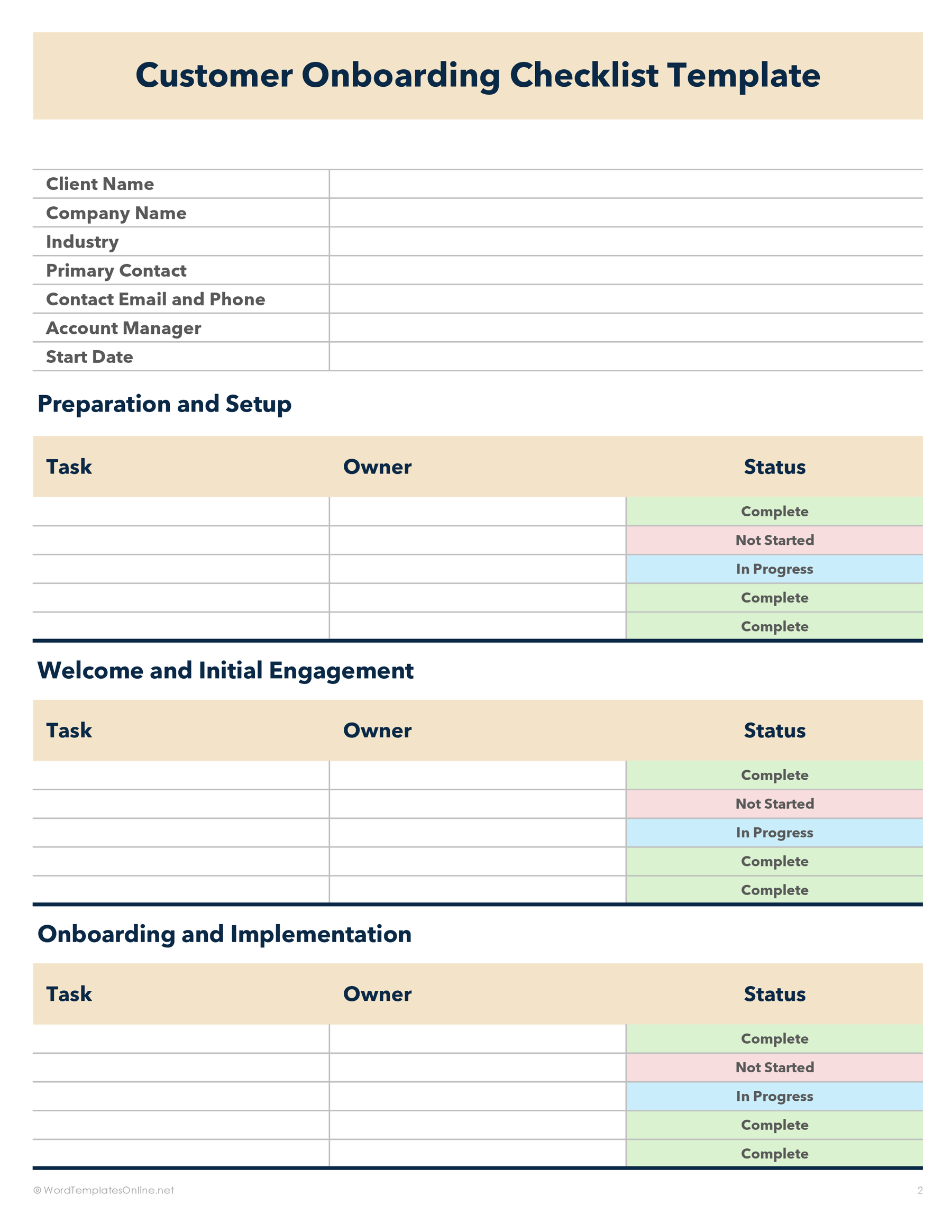
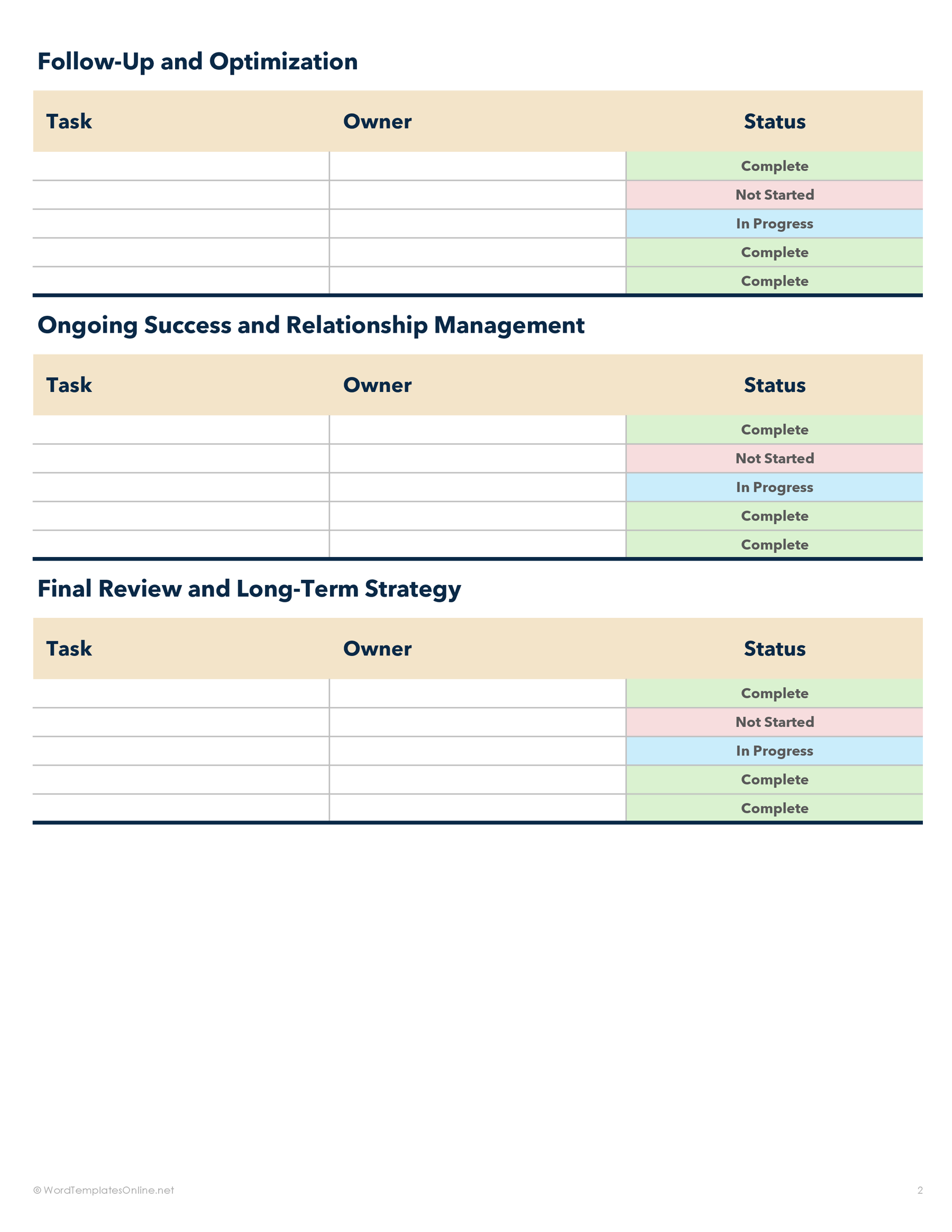
Onboarding Checklist 03
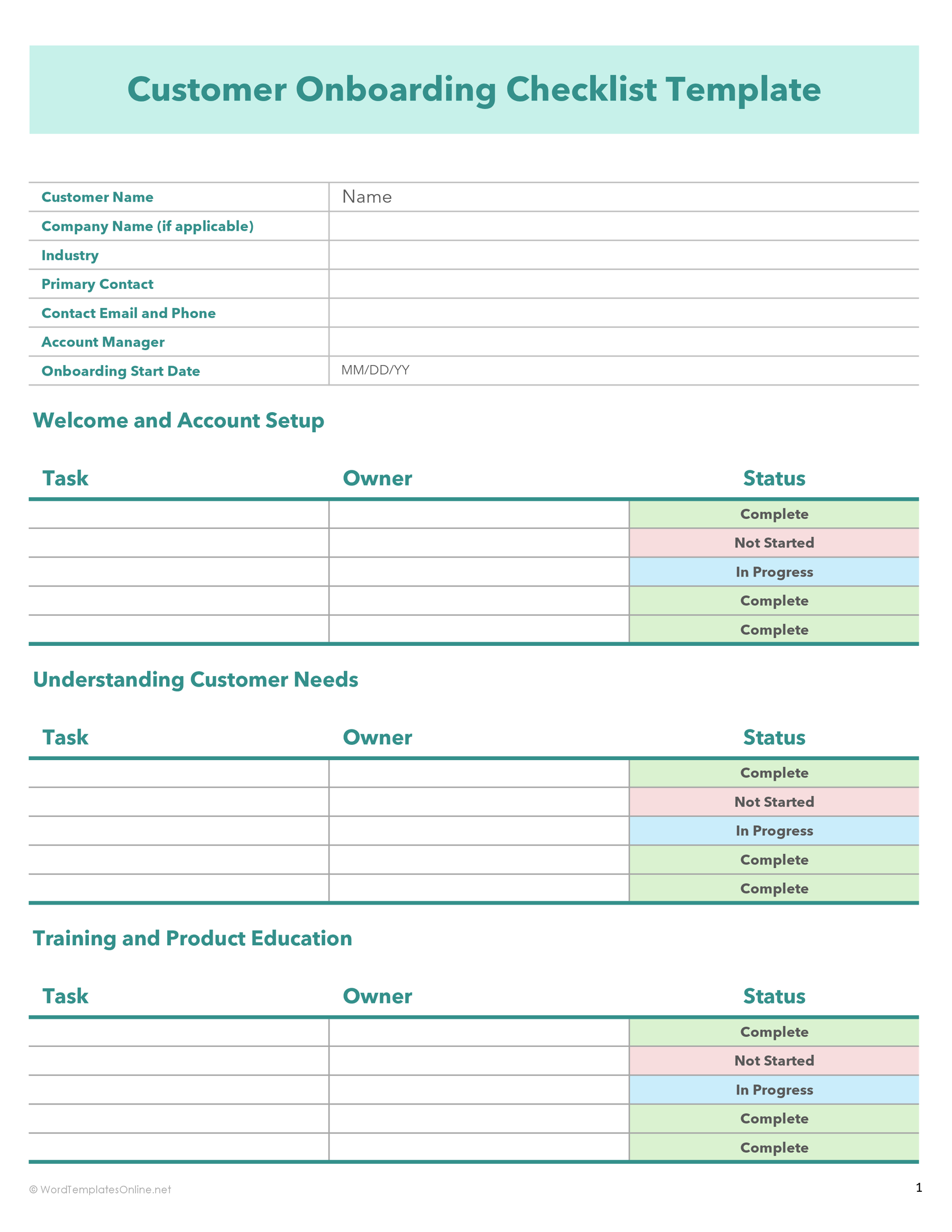
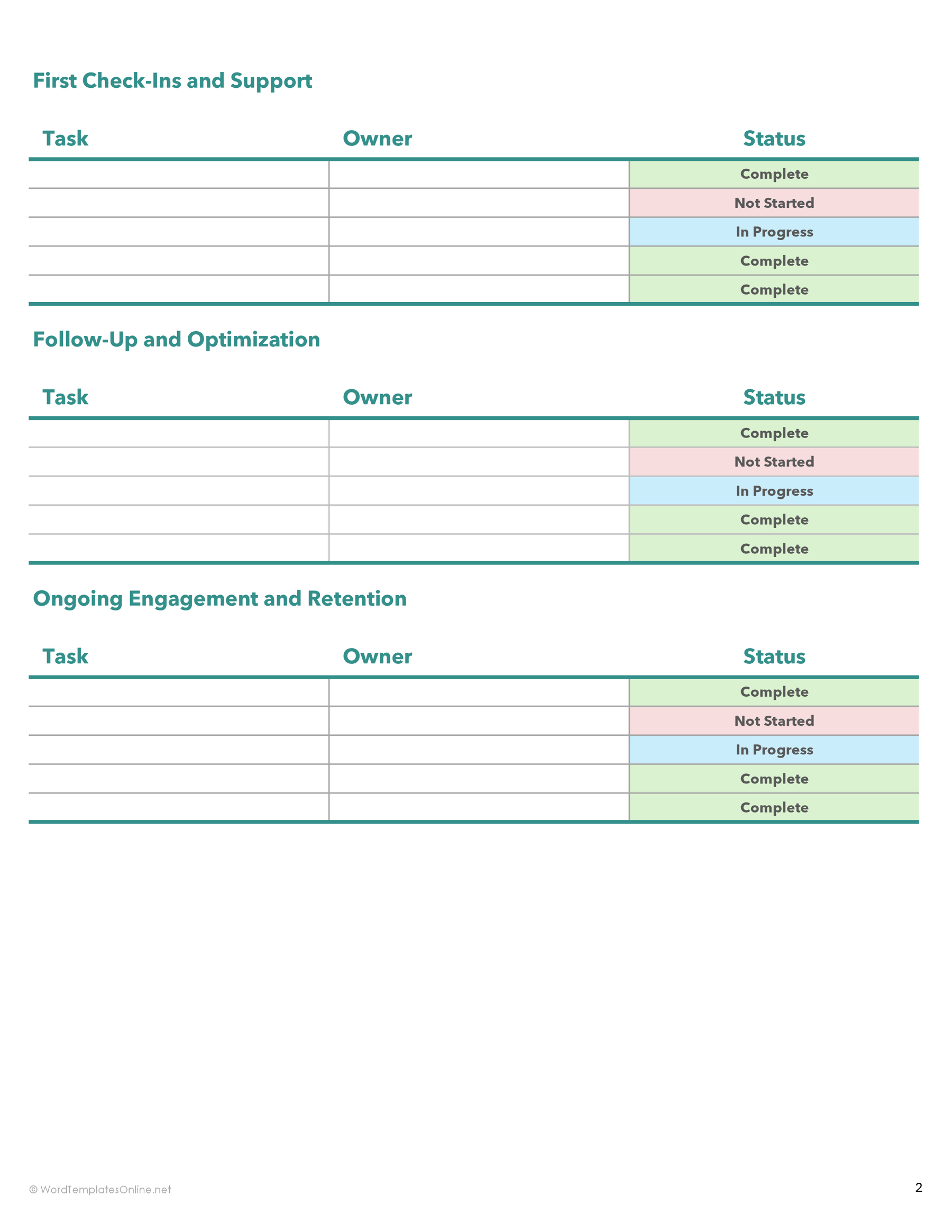
Onboarding Checklist 04
Onboarding Checklist 05
Onboarding Checklist 06
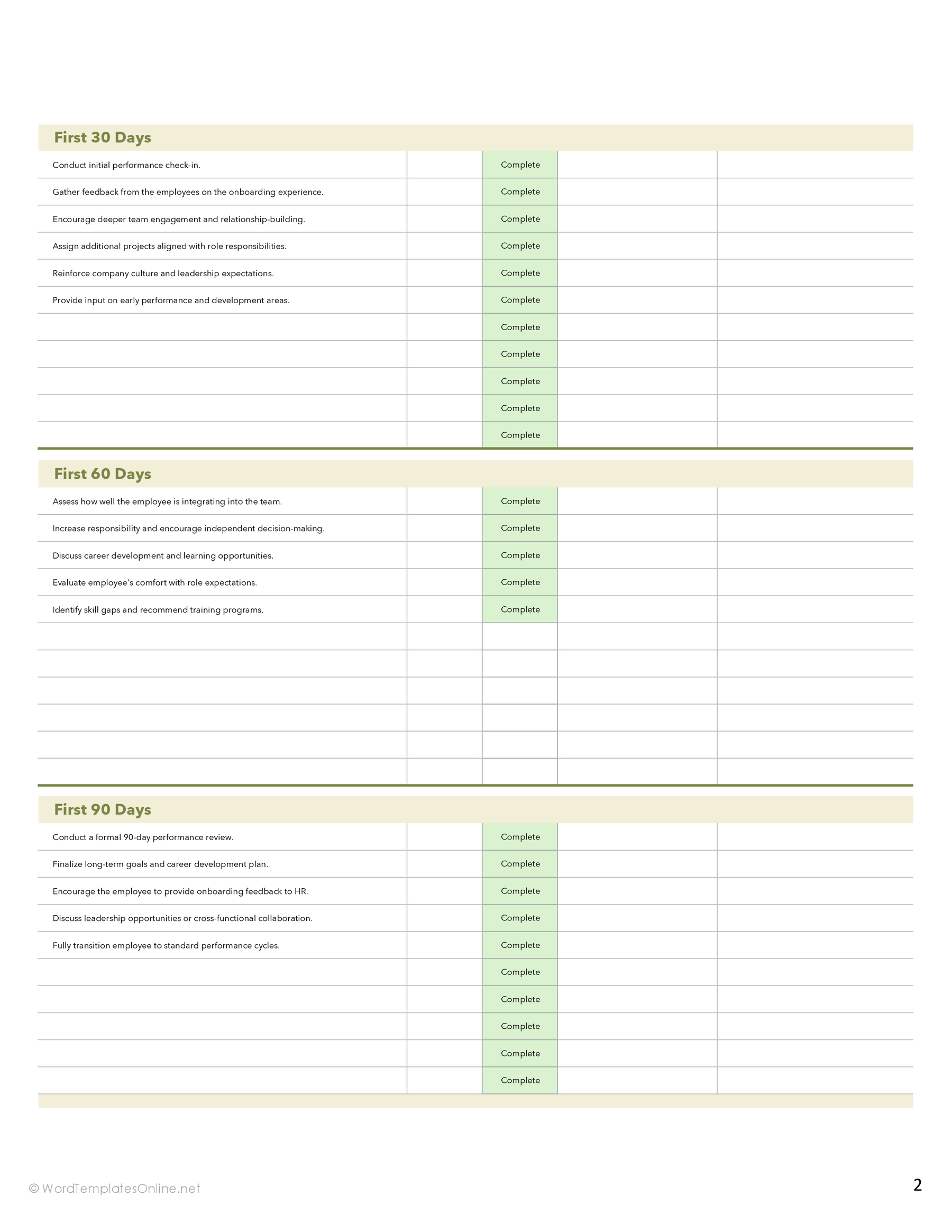
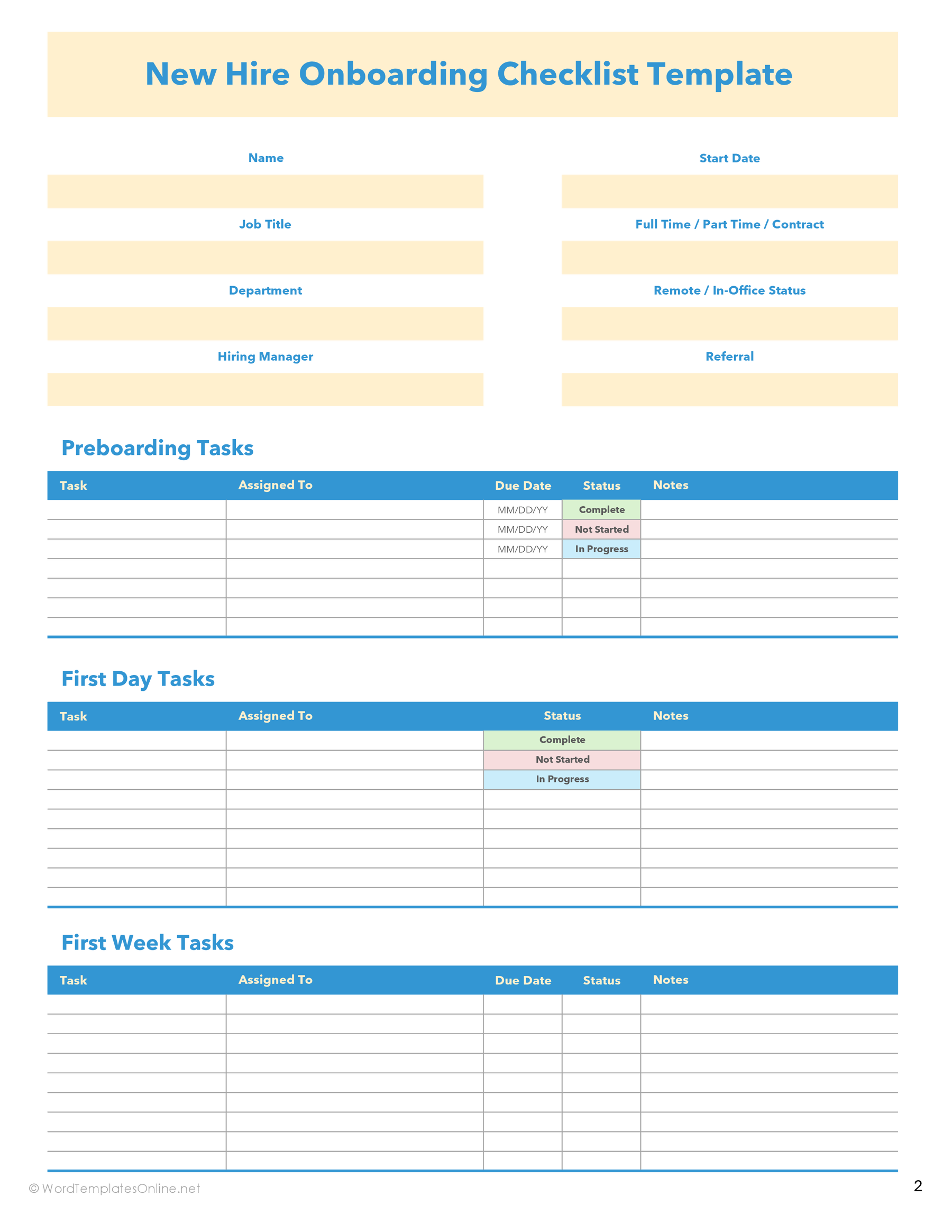
Layouts 01, 04, 05 and 06 cover employee onboarding. Use 02 for a client account or 03 for customer and product onboarding. If you need a date beside each task, look at 05: it has Due Date columns in several sections.
Turn one handoff into a usable task
Consider a fictional new hire whose laptop must arrive before their first day. In layout 05’s preboarding section, an entry could read:
- Task: Confirm laptop delivery
- Assigned To: IT coordinator
- Due Date: The agreed delivery date
- Status: Not Started
- Notes: Confirm shipping and access with the new hire
Put the actual calendar date in the Due Date cell. “Before the first day” leaves the person doing the work to work out a deadline; an agreed date gives them something specific to meet.
When the IT coordinator starts arranging delivery, change the status to In Progress. If the courier is waiting for an address, record that in Notes along with who will confirm it. The row then explains why delivery is unfinished and where the next action sits.
Select Complete after receipt is confirmed. Requesting shipment has moved the task forward, but it has not answered the question in “Confirm laptop delivery.” The same distinction helps with a customer account: arranging a product walkthrough and completing it are separate events.
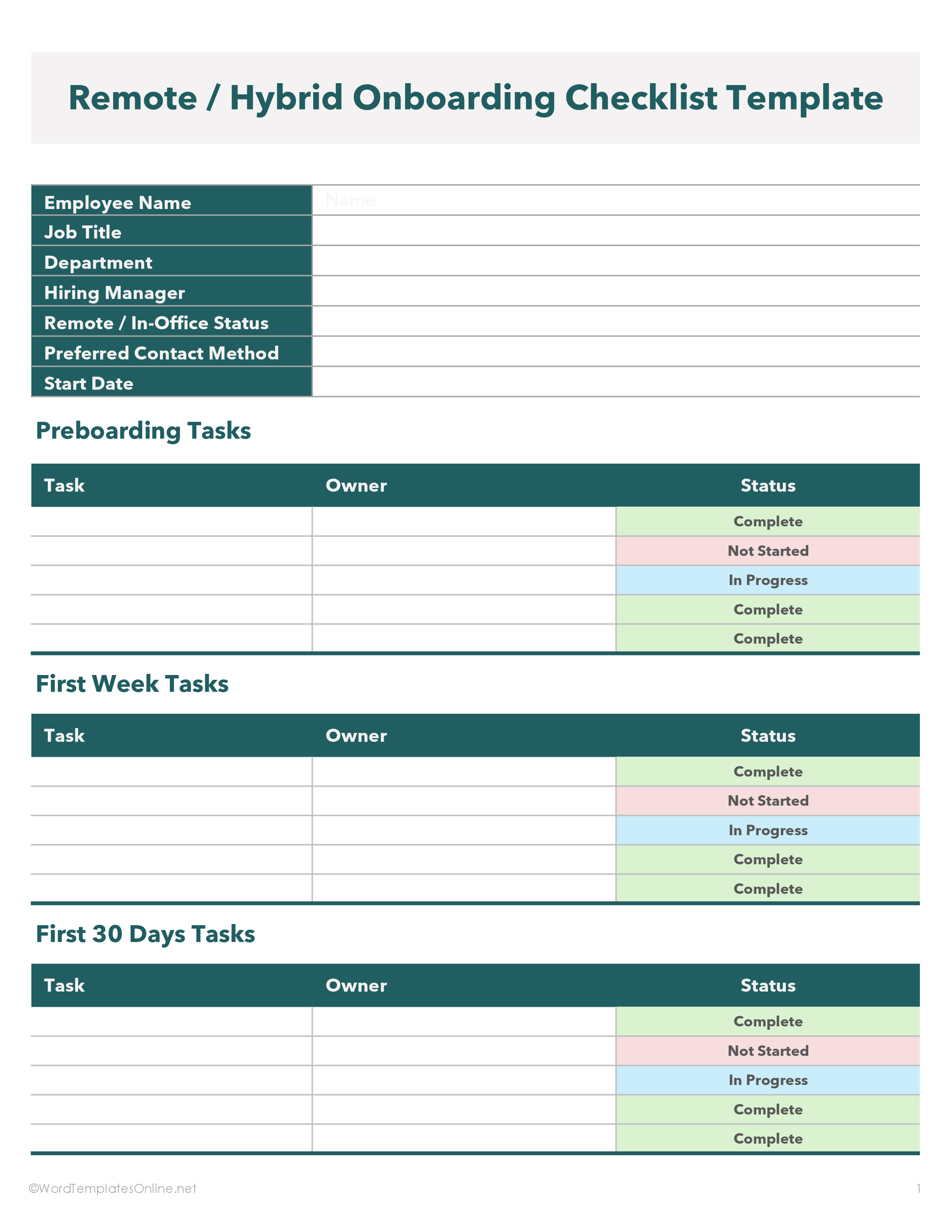
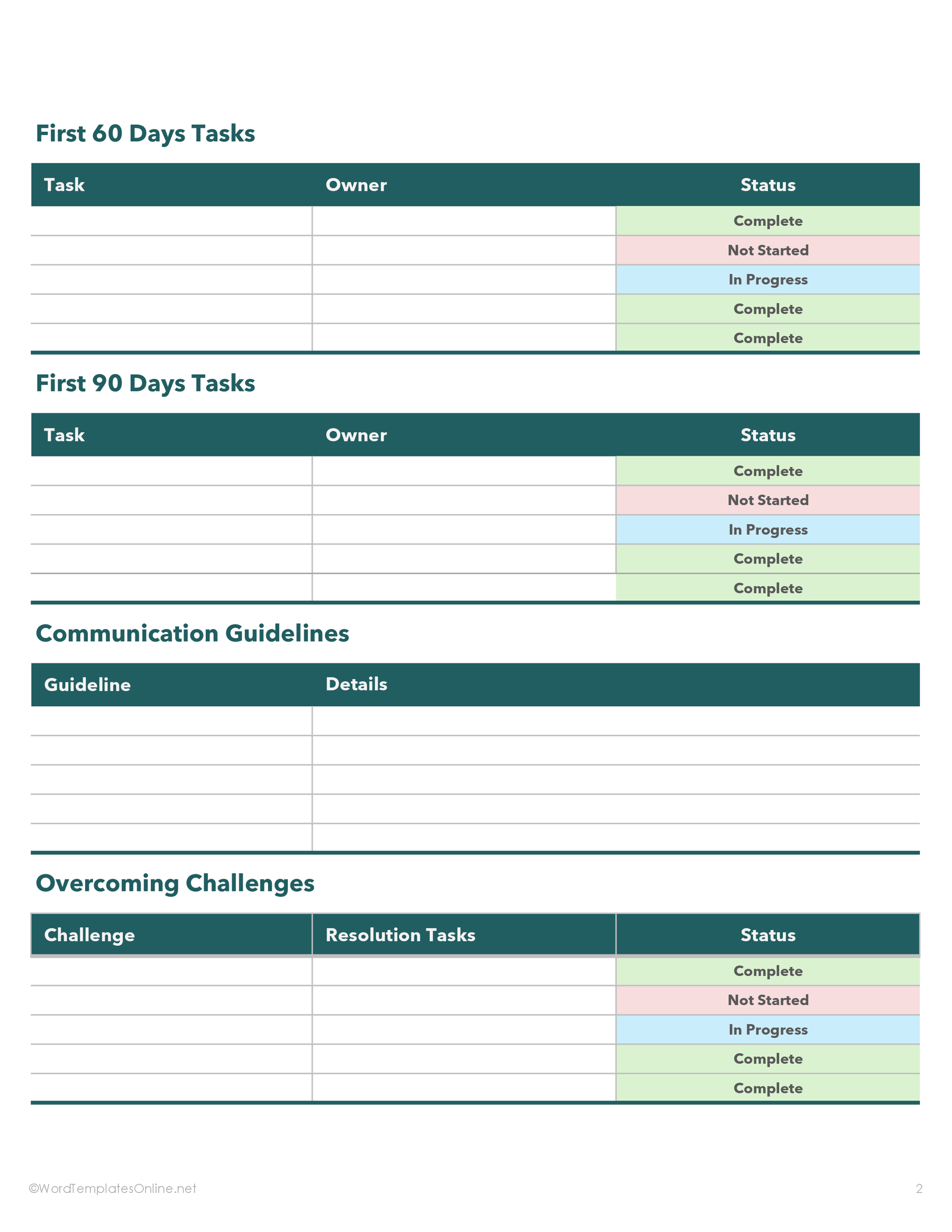
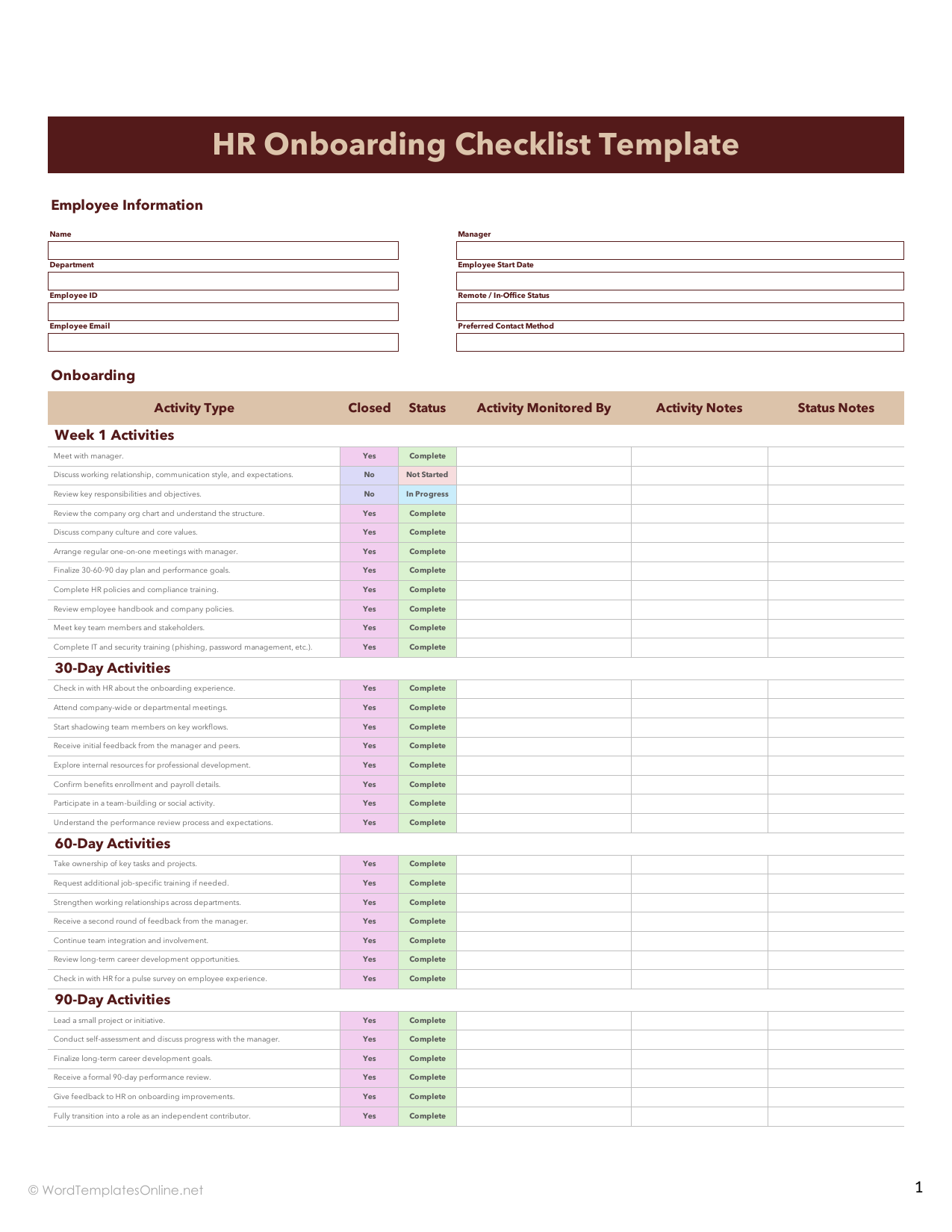
Other layouts record responsibility differently. In 01, 02 and 03, put the responsible person in Owner and update Status as the task moves. Layout 04 separates Activity Monitored By from Closed: its Yes/No choice records whether the activity is closed, alongside a separate progress status. Keep Closed at No while work remains.
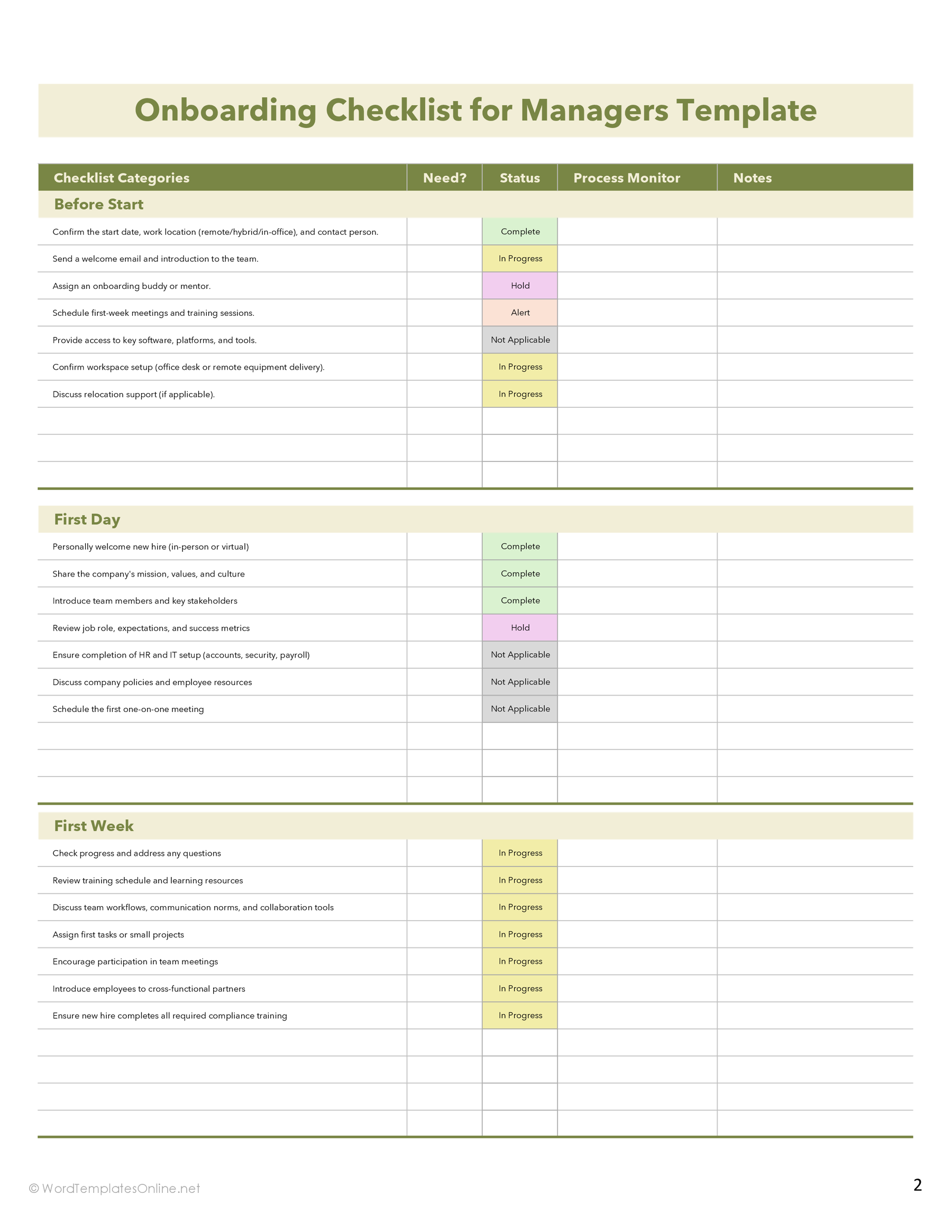
In 06, Process Monitor identifies the person following up. Hold and Alert are available status choices; use Notes to explain a delay or concern so someone opening the sheet can act on it. Its Need? field is blank for your entry, not a checkbox that decides whether an activity applies.
Make the first shared copy reflect real work
Create your working copy before entering names or customer details. Choose XLSX for a current Excel workflow, or XLS when you need the older workbook format; Microsoft’s Excel format guide explains the distinction. For Google Sheets, make a copy from the template preview.
Read through the starting values before sharing it. Several blank task rows already show Complete. Those demonstration values say nothing about your new hire’s progress. Clear or replace sample entries without deleting the dropdown rules, and retain the Dropdown Key and About Us credit tab.
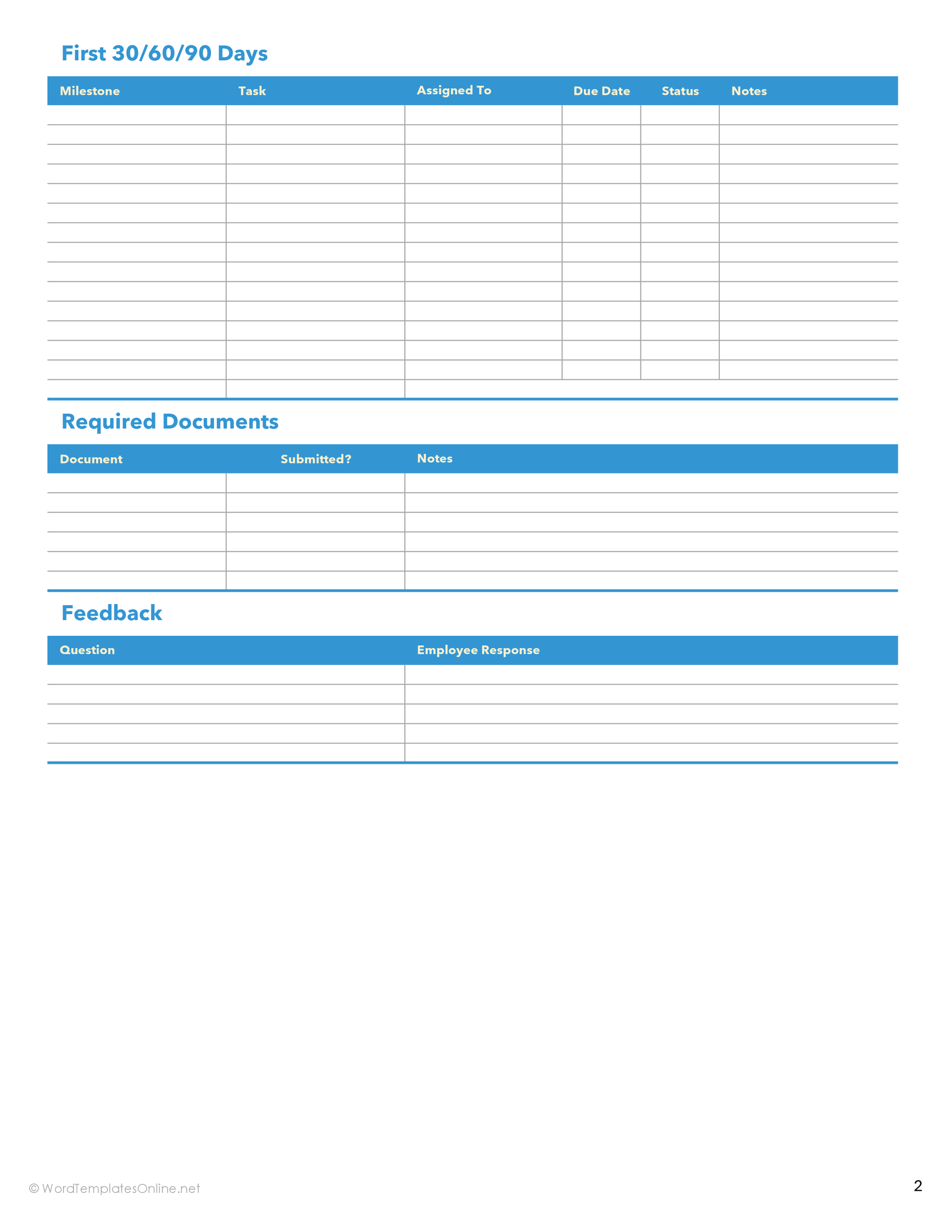
Layouts 01, 02, 03 and 05 leave task rows for you to fill. Layouts 04 and 06 supply activities to review against your own process. Assign actual people to the work you keep, and agree the dates with them. In 05, the preboarding, first-week and 30/60/90 sections have Due Date columns, but the first-day section does not. Elsewhere, an available Notes field can hold an agreed deadline.
Keep the sheet current at the next check-in
At the next review, return to the laptop row. If it still says In Progress, read the note and ask the named person what is needed now. A status color alone cannot tell you whether the address is missing, the shipment is late or confirmation has simply not been recorded.
Agree who maintains the shared copy and how task owners should report a delay. In Google Sheets, a comment on the relevant cell can keep a question beside the entry; Google’s onboarding guidance explains using comments to discuss and assign tasks. Treat the 30/60/90 headings as prompts for check-ins, adjusting the timing to your process.
Give the people involved appropriate Viewer, Commenter or Editor access to the populated copy. Keep confidential employee records in your organization’s approved system. The Submitted? field in 05 can record that a document was received; it does not verify the document or establish compliance. Before closing the checklist, agree the next review date and who will update the unfinished entries.
About This Article