SF-701 records an end-of-day security check of a work area where classified information is handled. It differs from SF-702, which records the opening, closing and checking of a particular security container. NARA’s security-forms guide identifies the purpose of each.
Get the official SF-701
Download the prescribed form from GSA’s Activity Security Checklist page, which lists revision 11/2010. If your organization directs you to use SF-701, obtain that official version and follow its completion instructions.
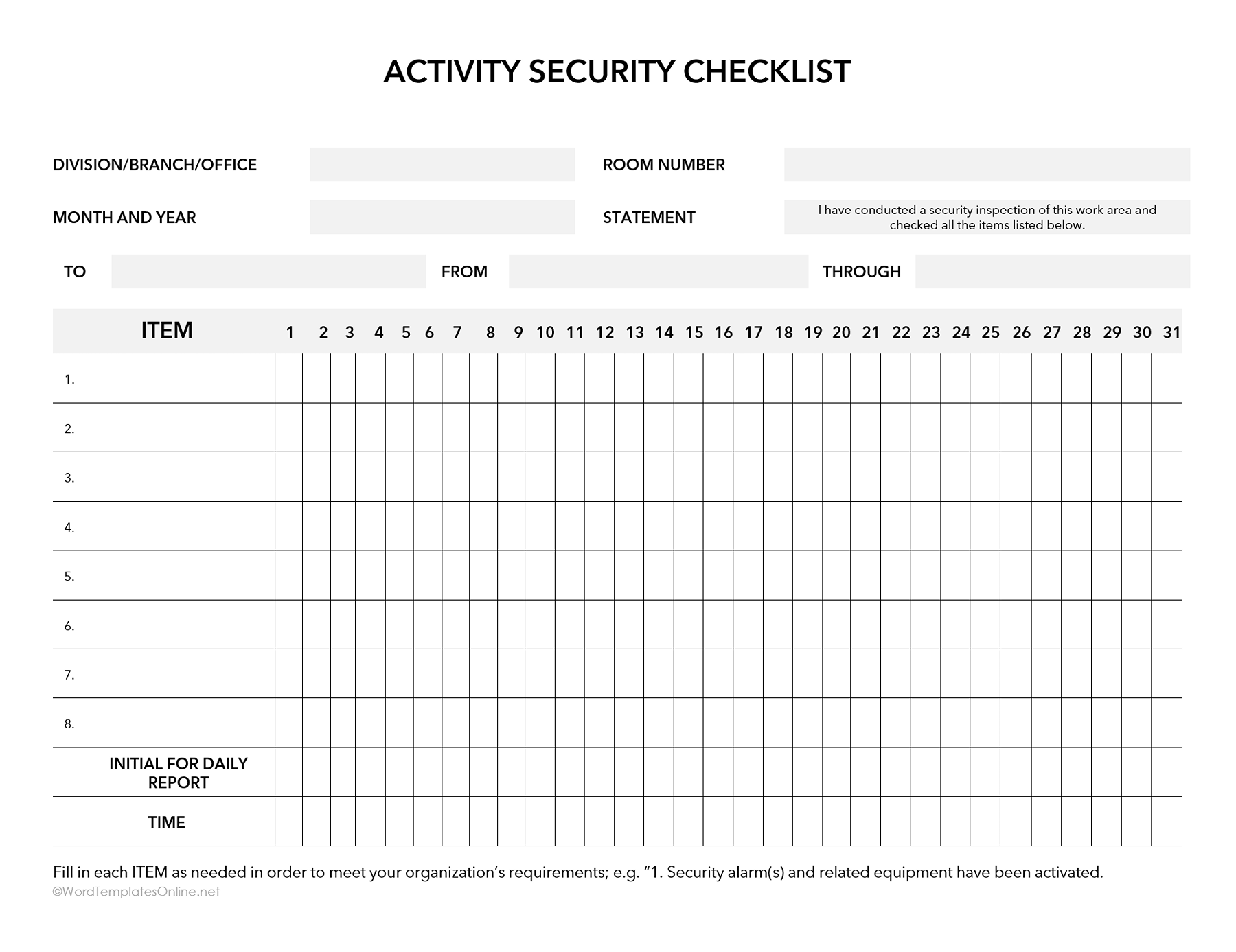
The editable layout below is WTO’s recreation, available as a Word DOTX template, an ODT file or a Google Doc. Its layout and some printed wording differ from the official SF-701; it should not be treated as the prescribed form.
SF- 701 Form
Complete the monthly sheet and daily column
The official form brings a month of checks onto one sheet. The header identifies the work area and reporting month. Item descriptions run down the left, while the numbers 1–31 across the grid identify dates.
Set up the month
Enter the Division/Branch/Office, Room Number, and Month and Year. The To, From and Through fields provide routing information; the official form marks them as required only when applicable. Use your organization’s instructions to determine those entries.
Fill the eight item lines with the checks specified for that work area. The blank lines accommodate local requirements; they are not eight mandatory checks supplied by WTO. Confirm the list with the person responsible for your organization’s security procedures before using the sheet.
Record a day’s check
After carrying out the required checks, find the column for that date and follow it down through the applicable item rows. The daily initials and time go at the bottom of the same column.
For a fictional 14 October entry, column 14 would contain the locally prescribed marks beside the checked items. The checker’s initials, AB, would appear in Initial for Daily Report, with 17:10 in Time. This illustrates where the entries align; it does not prescribe a marking symbol or identify who must perform the check.
Use the local standard operating procedure for non-working days, corrections and assigned responsibilities. CDSE’s SF-701 training guide explains why completion details are established at the activity level. Its workplace examples should not be assumed to govern another organization.
Report an irregularity and retain the record
The official form directs users to report irregularities promptly to the designated Security Office for corrective action. Recording a check does not replace that reporting step.
Follow your agency’s rules for completing, storing and disposing of the checklist. 32 CFR 2001.80(d)(4) places those arrangements under agency security regulations. Confirm the applicable records instructions with your security office; this provision does not supply one retention period for every organization.
About This Article