A cello fingering chart relates a note to a string and finger in a particular hand position. The useful entry is the whole relationship: which string, which note, which finger and which position the chart is showing.
These two static layouts offer different amounts of detail. Both are supplied as Word templates in DOTX format, ODT files and linked Google Docs versions. Choose a reference for the passage you are learning, then read it alongside your music and your teacher’s guidance.
Choose the amount of detail you need
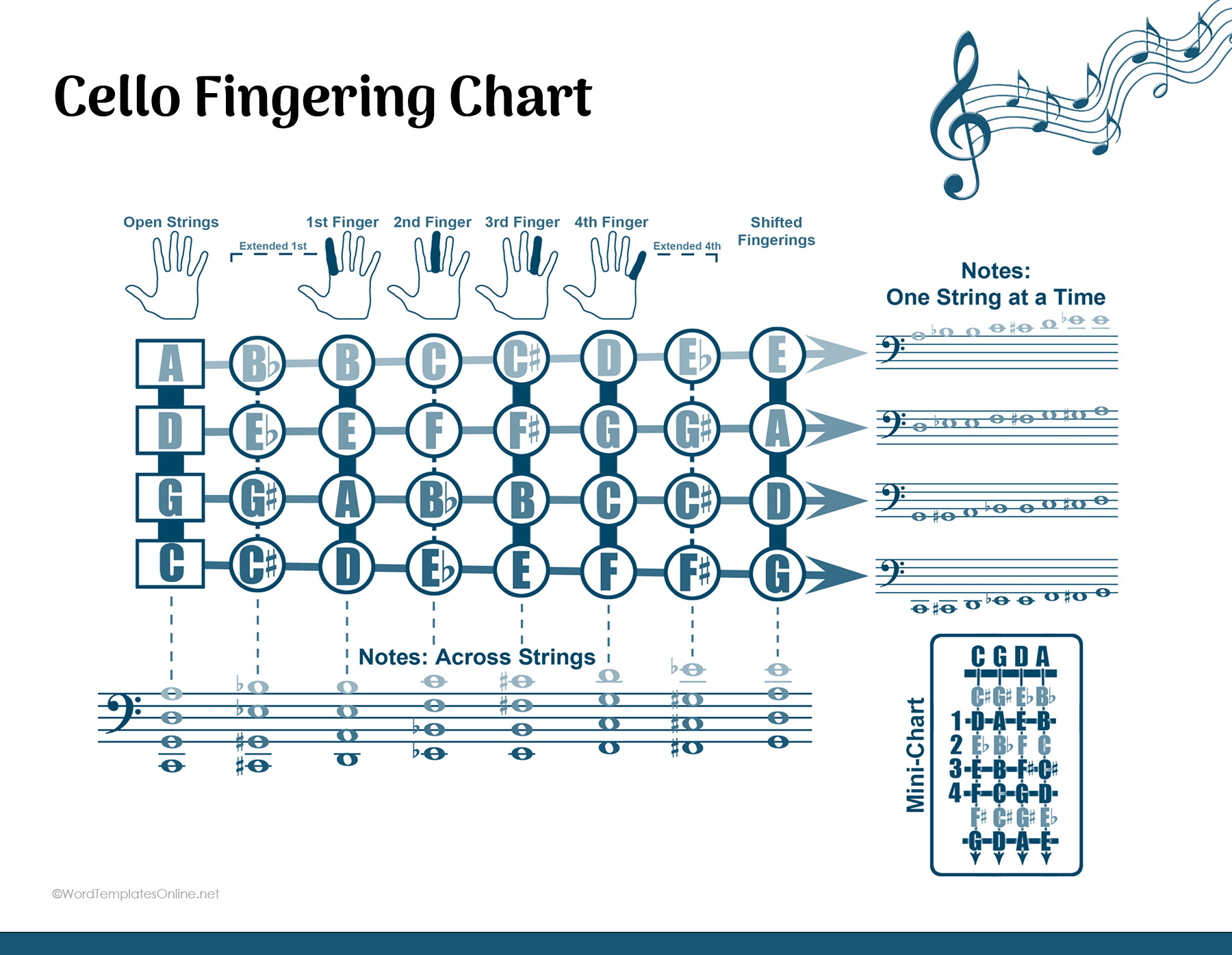
Chart 01 is a horizontal reference with A, D, G and C string rows, staff notation, finger markings and extension or shifted-position information. A small chart appears alongside the main reference. It gives you several kinds of information to connect, so take time to locate the relevant row and label.
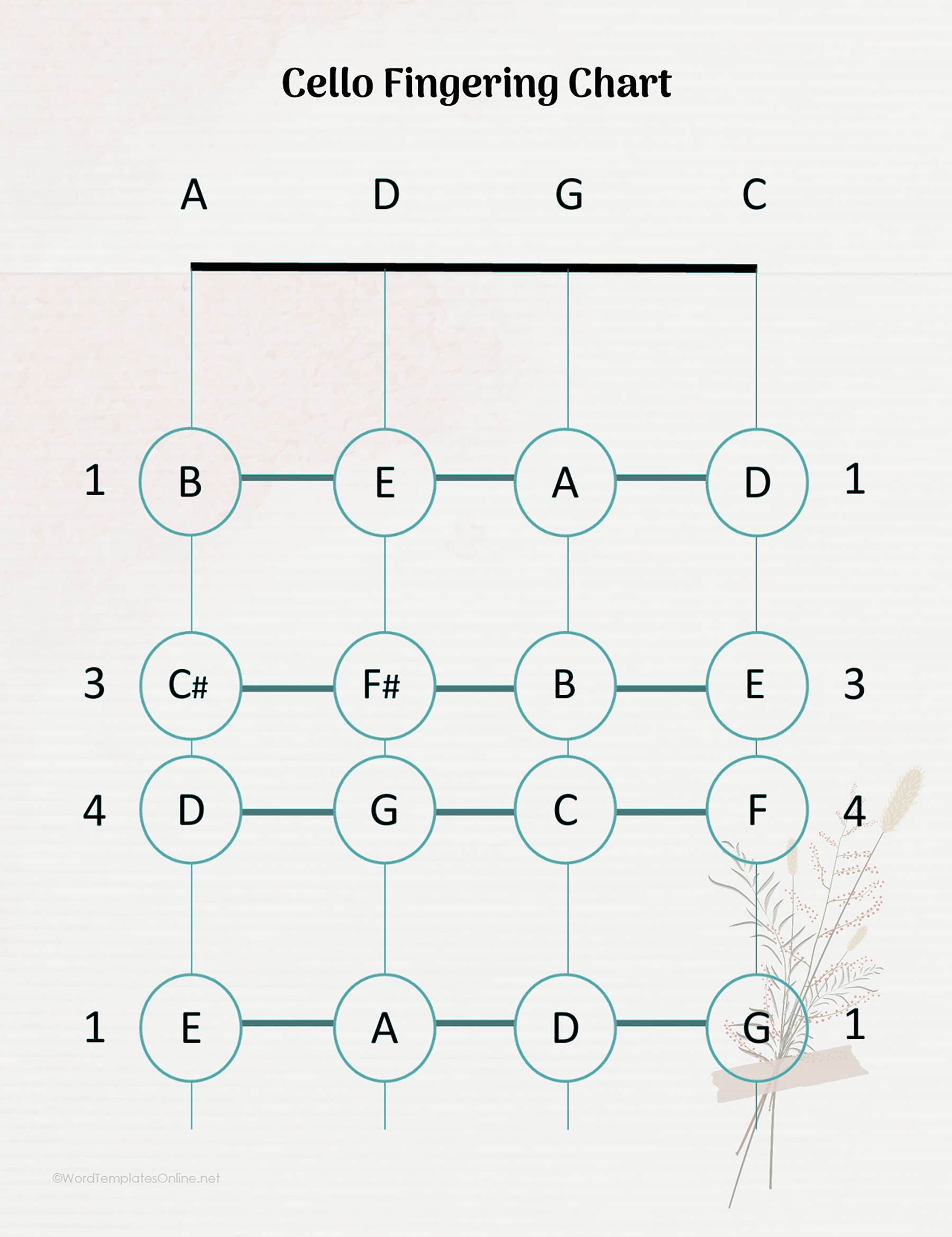
Chart 02 uses a vertical arrangement with four string columns and larger note circles. It provides a simpler visual way to locate the displayed notes on named strings. Choose it when the entry you need is clearly shown and you already understand the position context for that entry.
The diagrams are reference graphics rather than rulers for placing your fingers. The distance between marks on the page should not be transferred to the fingerboard as a physical measurement.
Cello Fingering Chart 01
Cello Fingering Chart 02
Read the string, note and finger together
First find the named string. The A, D, G and C labels tell you which string column or row you are reading. Then locate the note and the associated finger number within that part of the chart.
Finger numbers and note names answer different questions. In the conventional legend shown by Cello Online’s fingering chart, 0 means an open string, while 1, 2, 3 and 4 refer to the first through fourth fingers. Use each reference’s own legend for its additional symbols and colors; the colors in Cello Online’s chart are not a legend for every other design.
For a small reading example, look at the D-string row in chart 01. It shows E with the regular first finger and G with the fourth finger. Read “D string, E, first finger” together, then “D string, G, fourth finger.” This is a way to follow those displayed entries, rather than a claim that a finger number identifies a note without the string and position.
Keep the score beside the chart. Check the octave and any accidental in the music before applying the entry to the passage.
A finger number is different from a hand position
“First finger” names a finger; “first position” describes where the hand is located on the fingerboard. Moving the hand changes its position, which changes the notes available under the fingers. Cello Online’s shifting and extension guidance explains this distinction.
An extension changes the finger pattern used to reach notes. Chart 01 includes extension and shifted-entry markings, so read those labels as part of the entry. A repeated finger number elsewhere on a diagram should not, by itself, be taken as an instruction to stay in the same hand position.
Use your lesson guidance for how to make a shift or extension. A static diagram can identify a relationship, but it cannot demonstrate your hand movement or judge whether you are using it comfortably.
Check the chart against your passage
Choose one readable note from the passage. Find its string and register in the reference, check the intended hand position, and confirm the fingering with your teacher. Once that relationship is clear, use the same reading process for another entry.
If a needed note or position is not clearly identified, consult an appropriate reference rather than filling in the gap from the shape of the graphic. A chart with more detail is useful only when the extra labels answer the question you have.
You can also use the chart to prepare a precise lesson question: “Does this passage use the D-string entry shown here, or a different position?” That is easier to discuss than trying to interpret every mark on the page at once.
View or print a readable copy
Use the DOTX Word template, ODT file or Google Docs option that suits how you keep lesson material. Save a working copy separately so the blank source remains available.
The main musical diagrams in the Word and ODT sources are raster graphics, with surrounding titles as separate text. The document format therefore does not promise independent editing of every note, circle or finger label.
Inspect the selected file at the size you intend to view or print. Staff lines, accidentals and small annotations need to remain legible. Start with the amount of detail needed for your lesson, and check one string-note-finger relationship against the music before using the chart as a reference.
About This Article