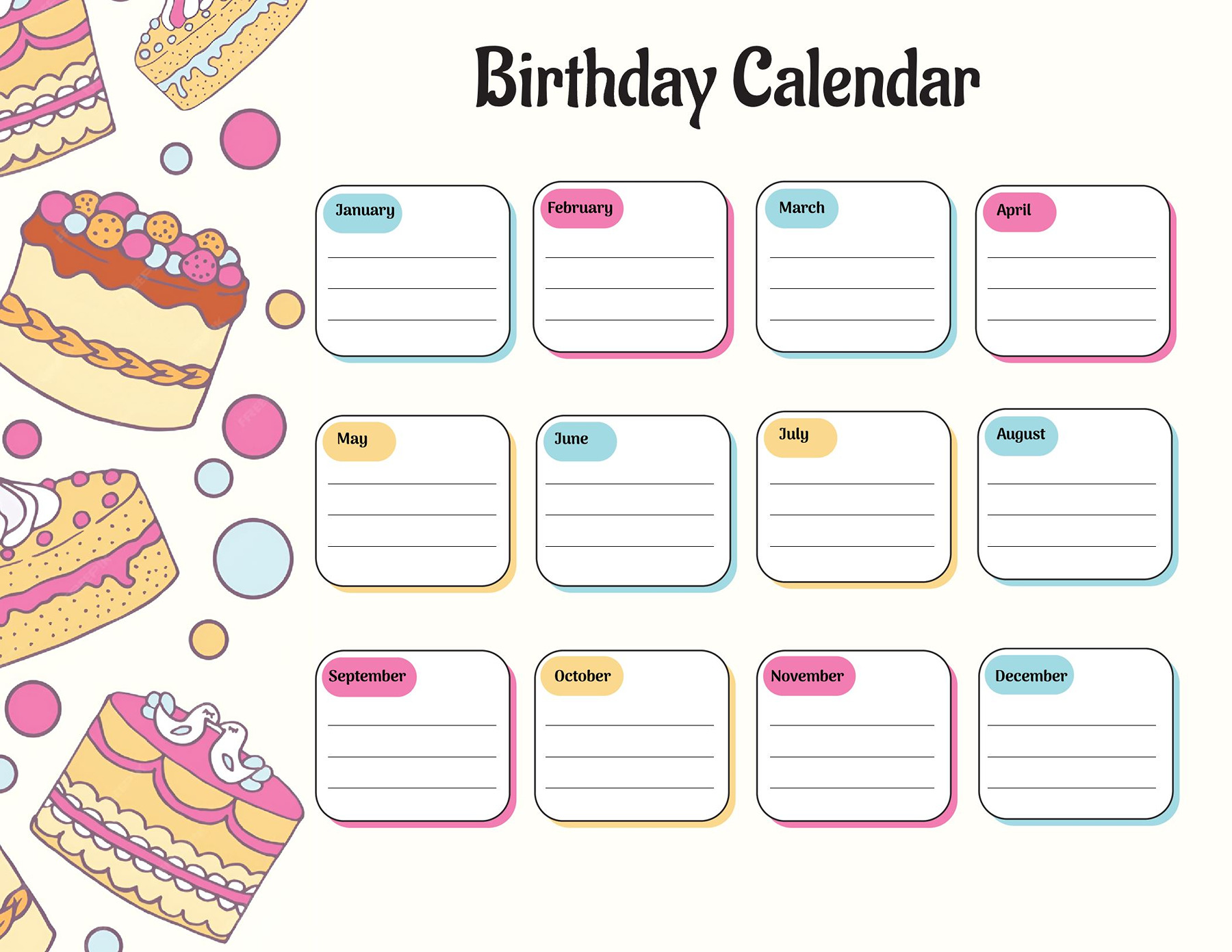
Use an event calendar to give people a clear view of what’s coming up: a few dates for the month, a year of activities, or a short weekly schedule. These ten layouts include monthly lists, featured-event cards and weekly sections. Each is offered in Word, ODT and Google Docs, with an additional Word document copy among the download choices.
Choose the layout by the amount of information your audience needs. A month-by-month list can work for “save the date” notices; an invitation to attend needs enough space for times, location and any joining instructions.
Choose an overview or a detailed event list
| What you need to share | Start with | What to allow for |
|---|---|---|
| A year arranged by month | 02, 03 or 07 | These use lists or description areas, not a day-by-day calendar grid. |
| A small set of featured events | 01, 04, 05, 06, 08 or 09 | Pick the date, time and description spaces that suit your entries. |
| Activities grouped by week | 10 | Four weekly sections; check the available rows in your chosen format. |
A numbered line under a month is an event slot. It doesn’t assign that event to the first, second or third day of the month. Include the actual date in each entry so readers don’t have to guess.
Compare the ten layouts
Layouts 02 and 03 give every month its own list. The former provides three numbered lines per month; the latter provides four. Both favor short entries. If a monthly activity needs an explanation, 07 has twelve description cards and a year label, with sample paragraphs to replace.
For a smaller selection of dates, 01 has five featured entries with month/day areas, event names and separate start and end times. Layout 04 offers six month/day description boxes, while 05 uses six entries that also show a weekday. Fill the weekday from your actual date rather than carrying over the sample.
Layouts 06 and 08 give more prominence to an event description. The date/year list in 06 is useful when the year should sit with the entry; count the available entries in the file you open before preparing your text. Layout 08 contains ten dated cards running from January to October, so choose a different layout if you need twelve separate month sections.
In 09, six month/day entries pair a time with a description. Put a finishing time in the description when readers need one. Layout 10 groups activities into four weekly sections. Its Word/ODT and Google Docs versions have different numbers of entry spaces; choose the version that fits your schedule before you start filling it in.
Event Calendar 01
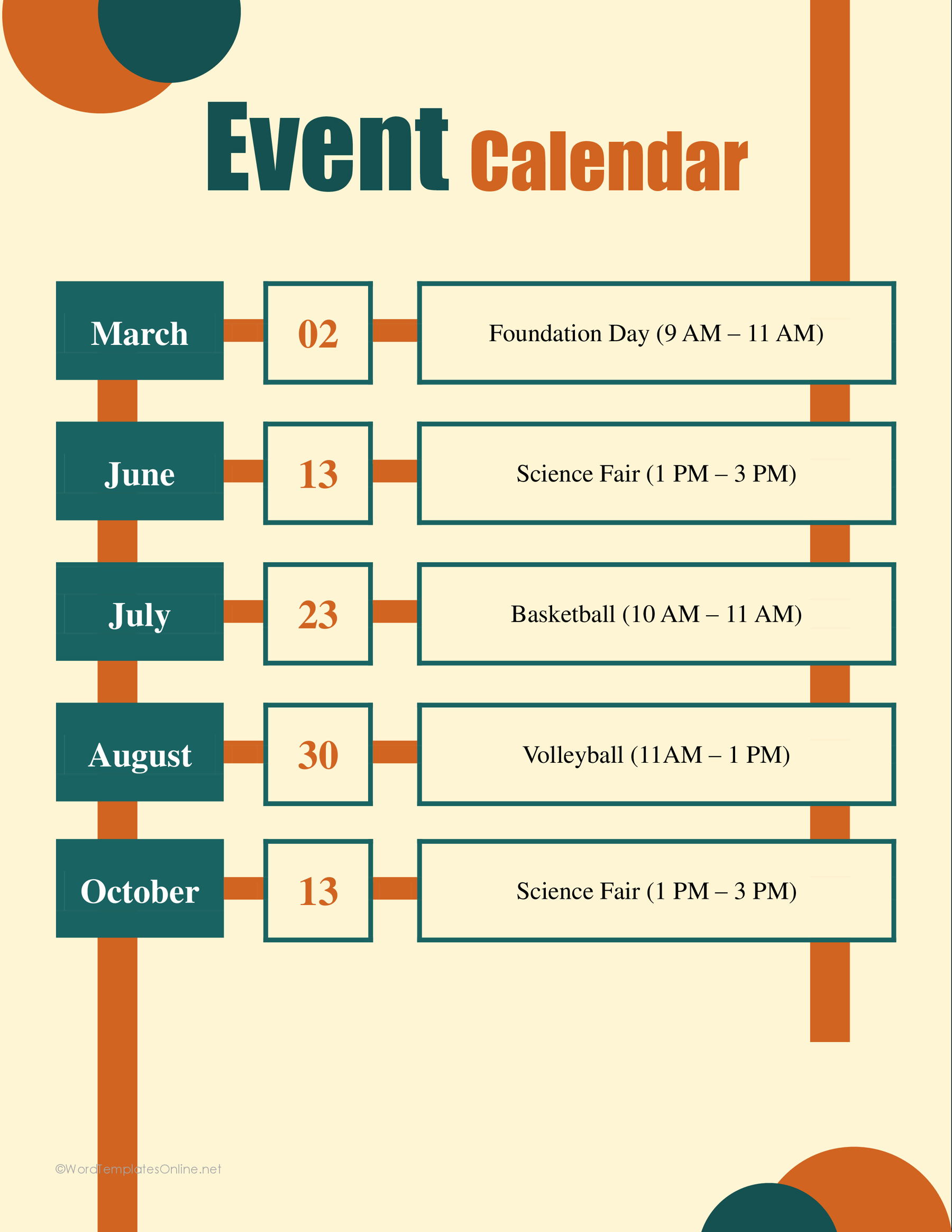
Event Calendar 02
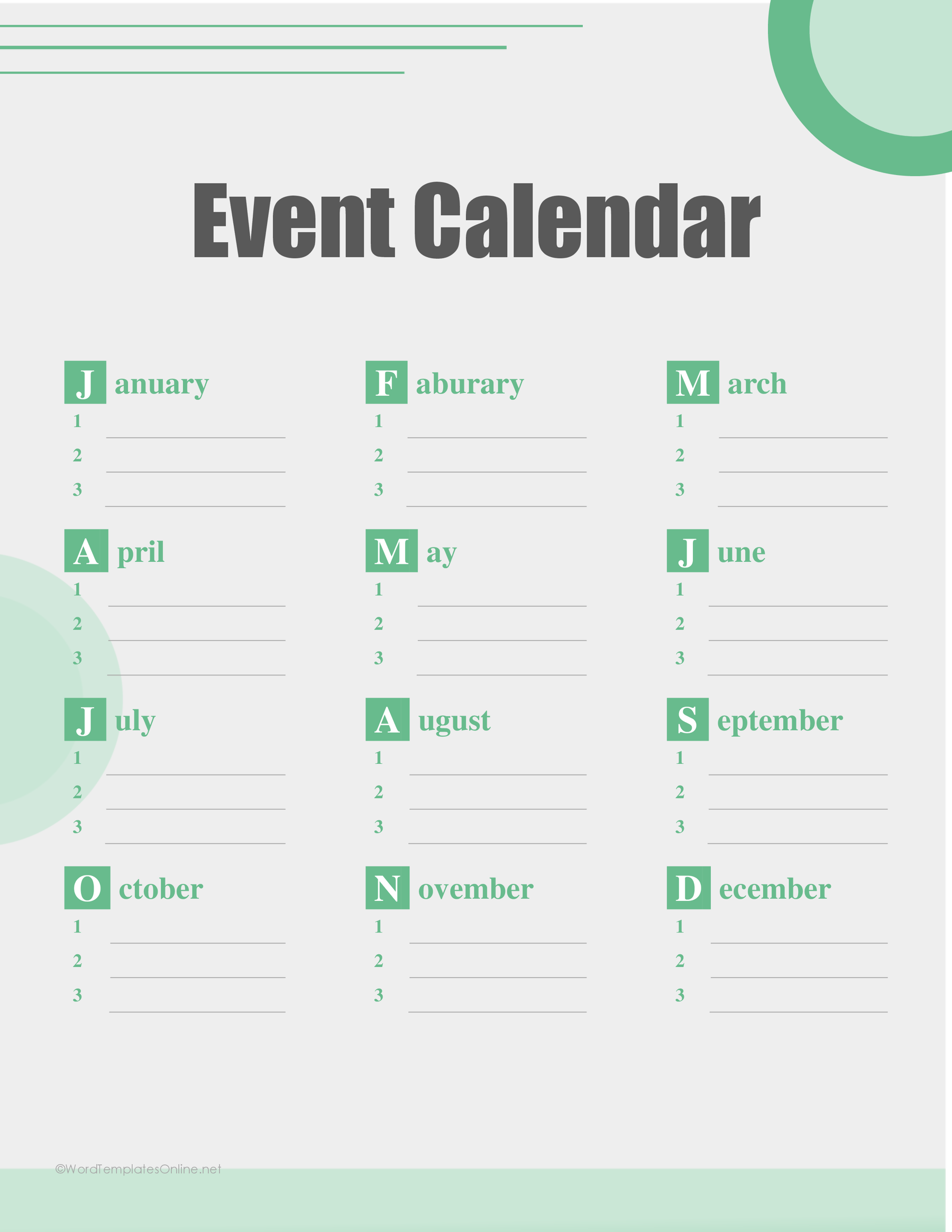
Event Calendar 03
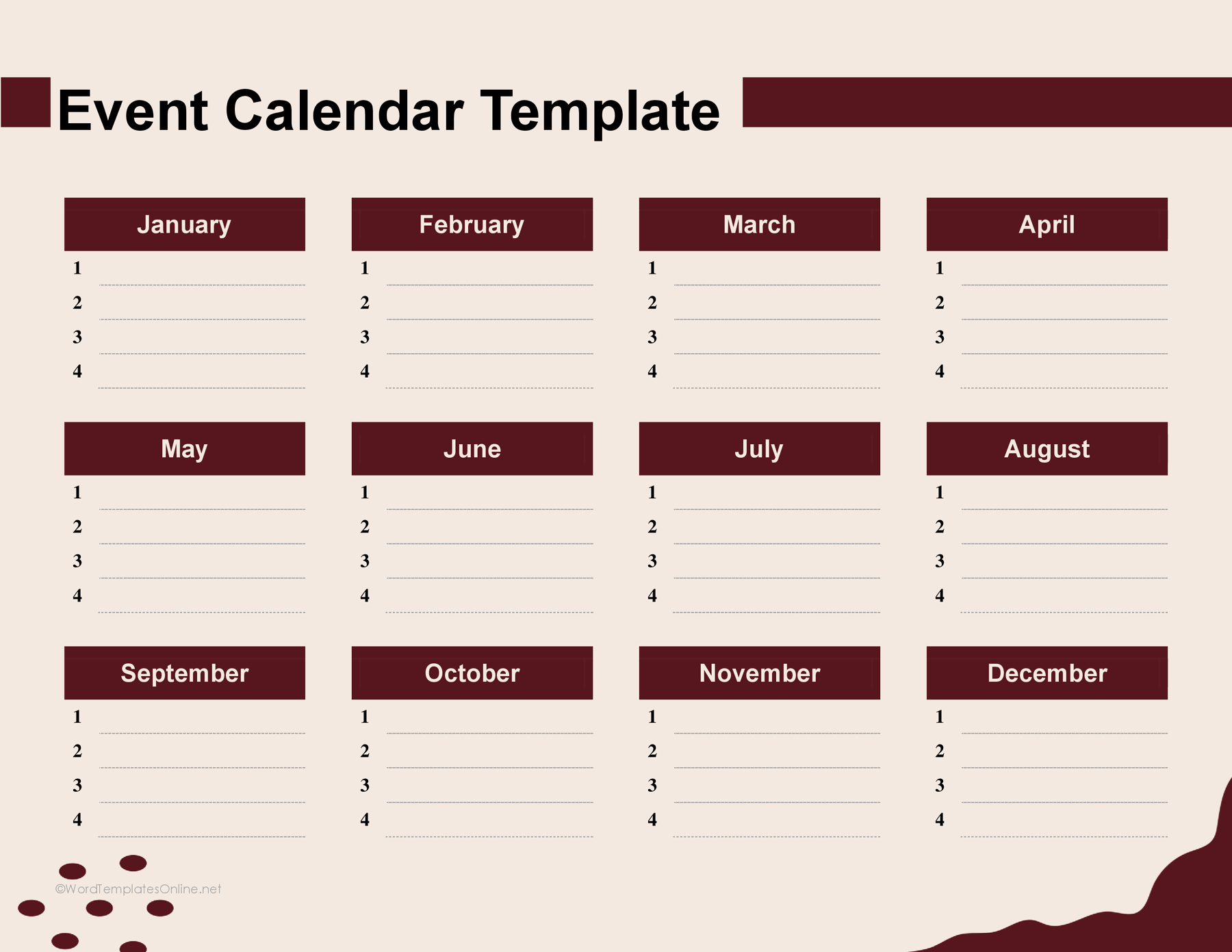
Event Calendar 04
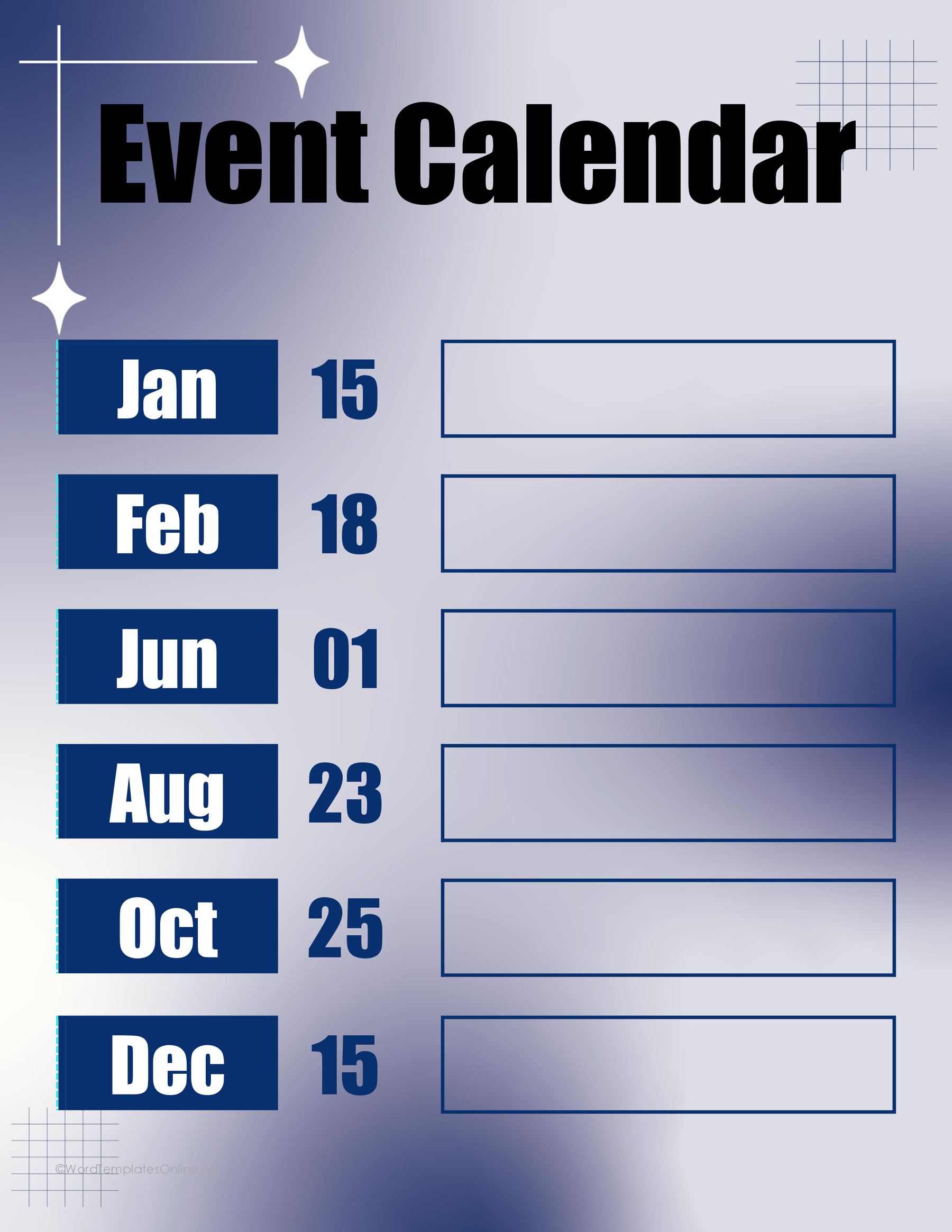
Event Calendar 05
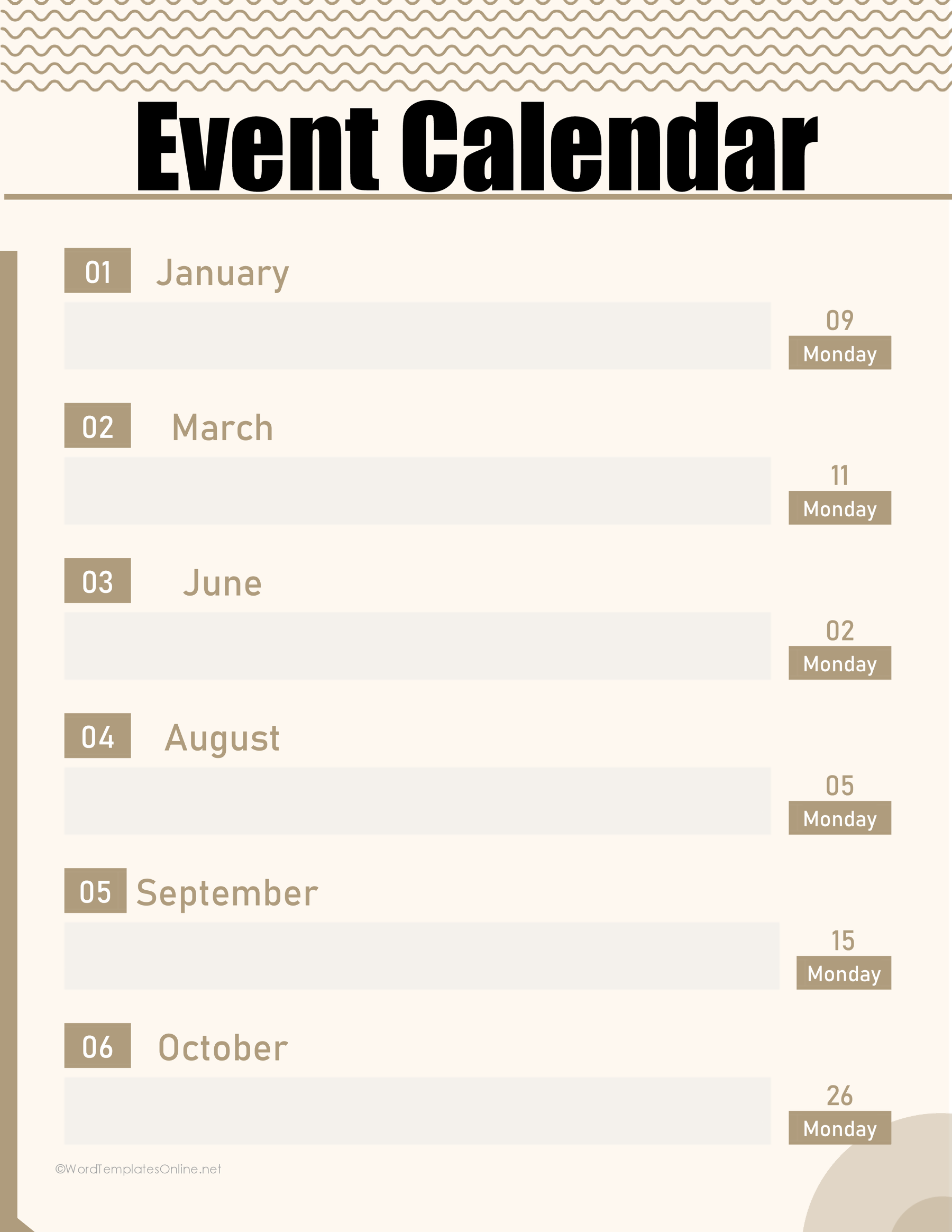
Event Calendar 06
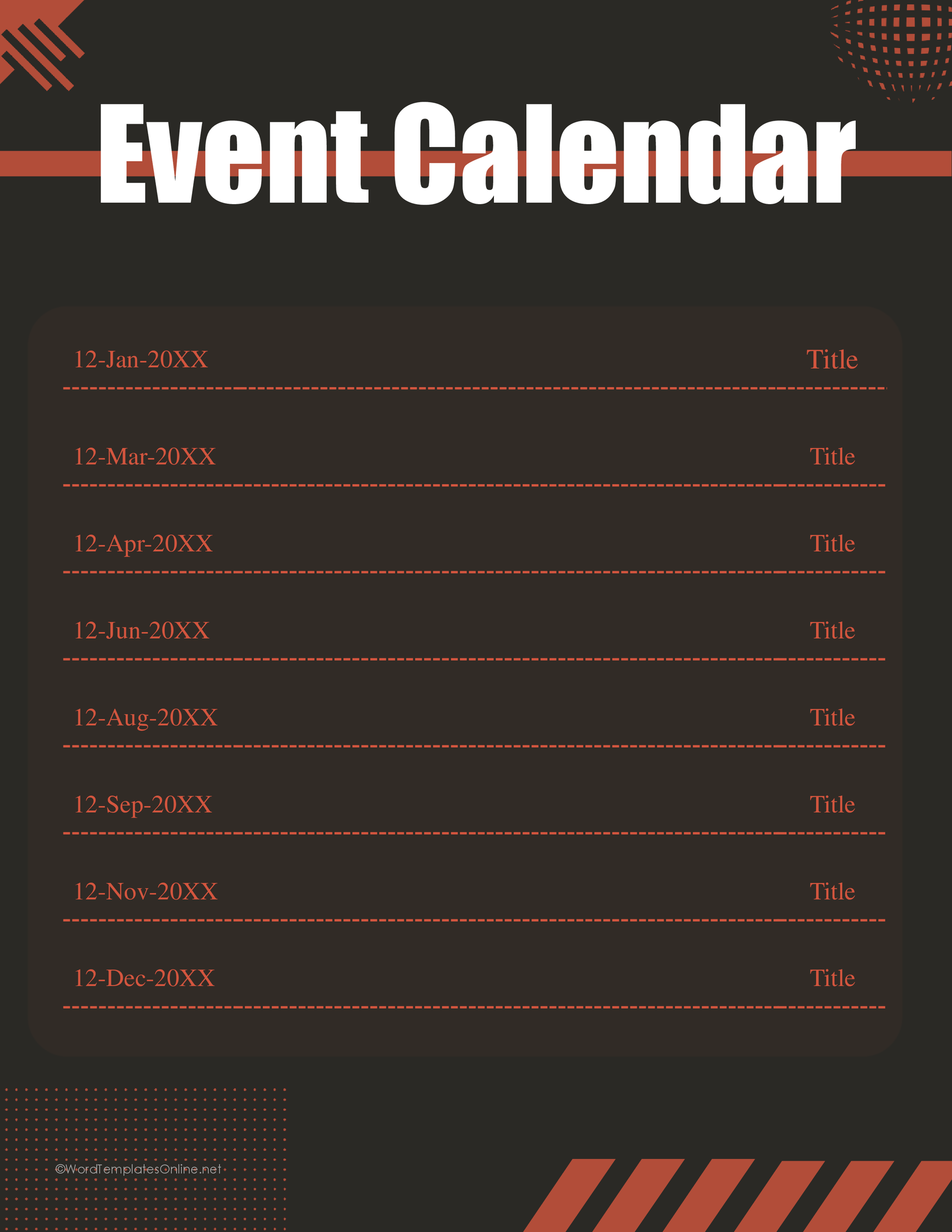
Event Calendar 07
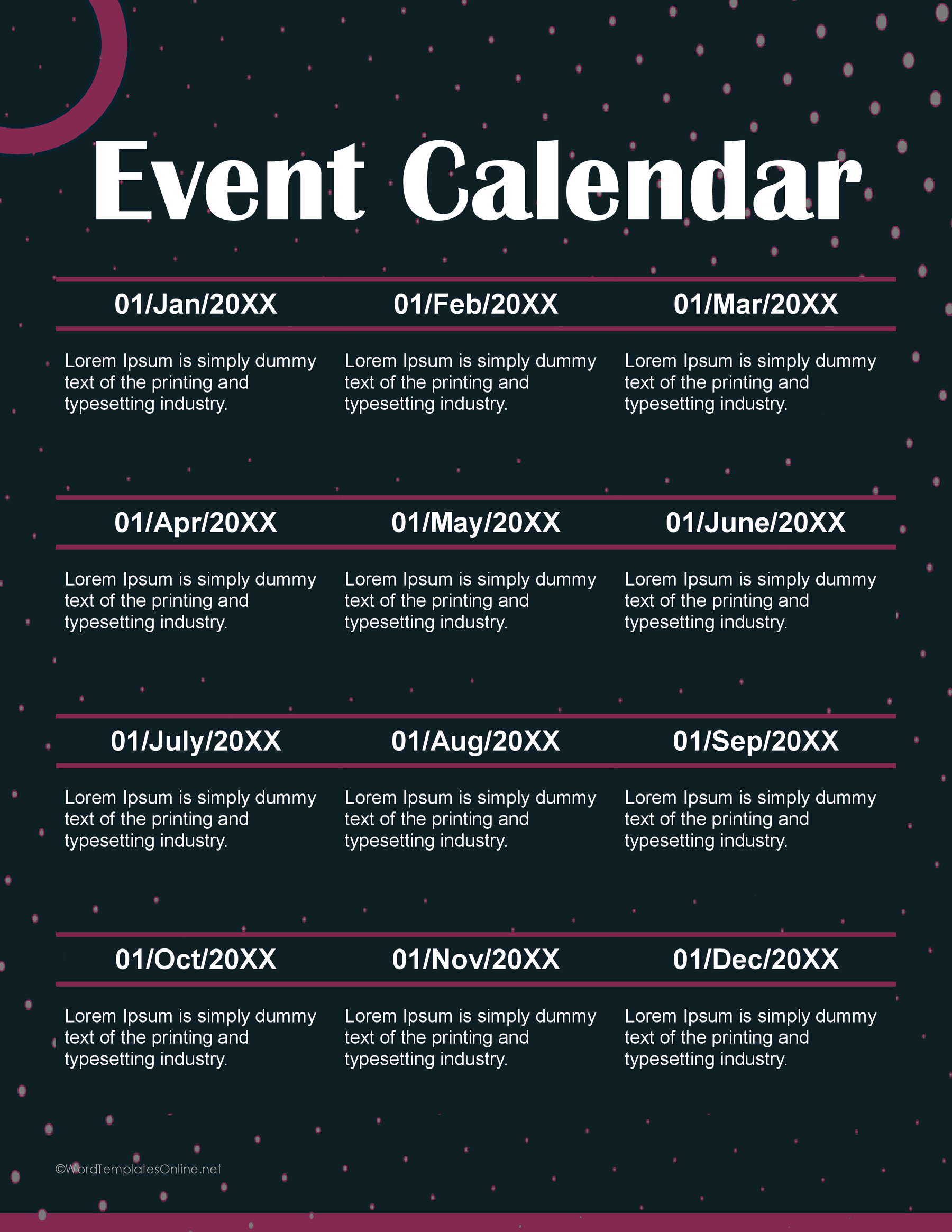
Event Calendar 08
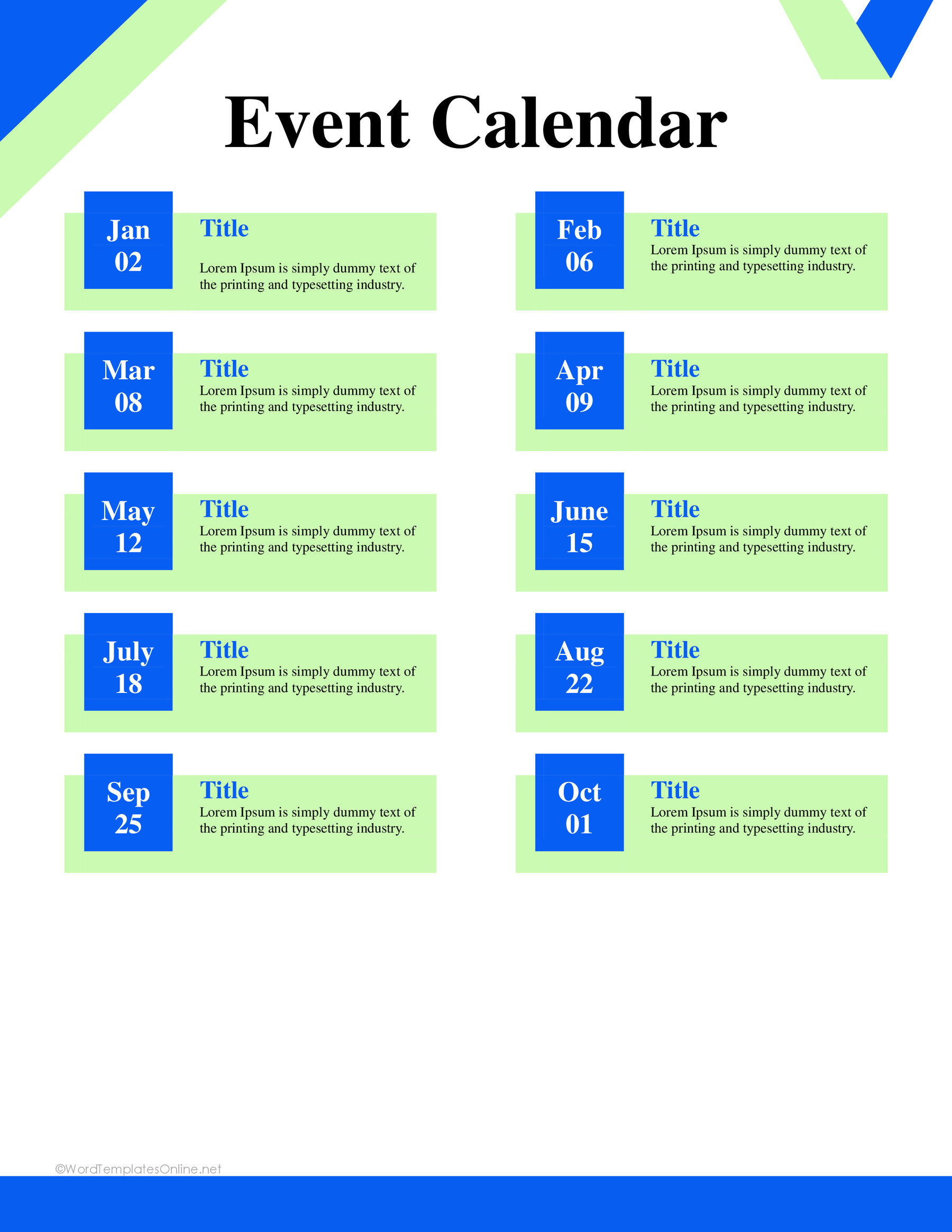
Event Calendar 09
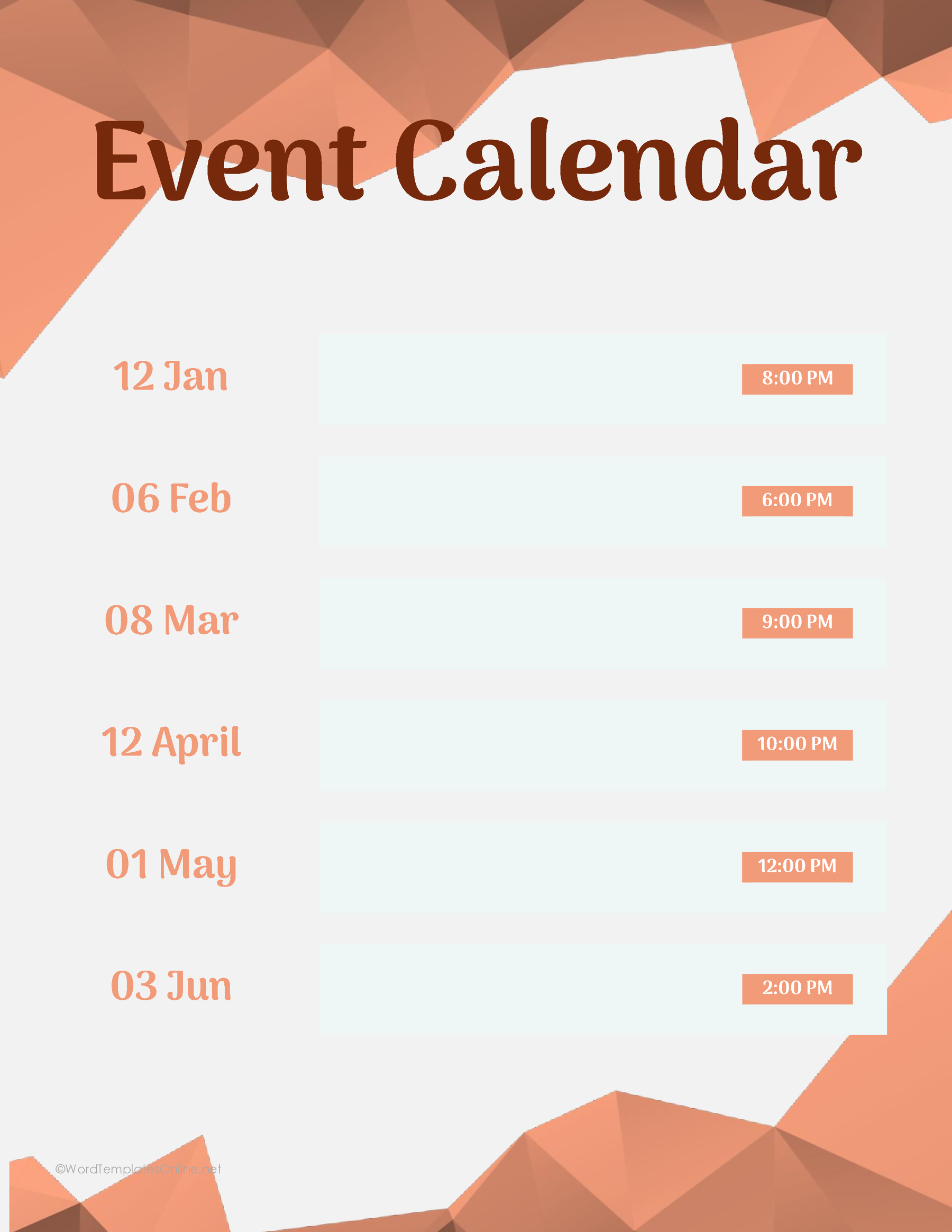
Event Calendar 10
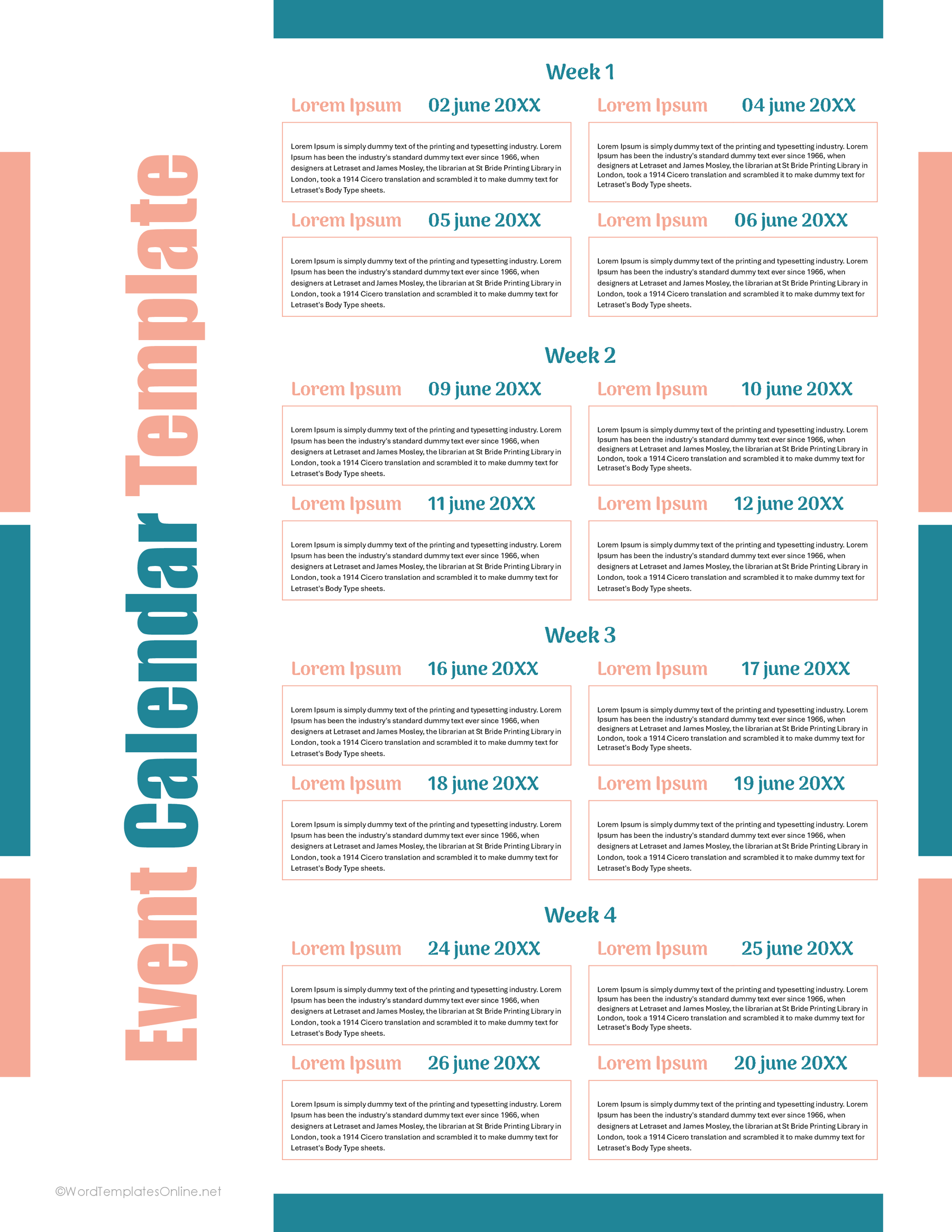
Add the details someone needs to attend
Start with one complete entry, then use it to set the level of detail for the rest. Here’s an invented example for layout 01: a Riverside Club workshop on November 14, 2026, from 2:00 to 3:30 p.m., at Riverside Community Room.
Enter November and 14 in the date area. Add “Riverside Club workshop” as the event name, then fill in the labeled start and end times. The year, room and contact details don’t have dedicated fields in this layout. Add them in suitable text in your working copy, such as a heading that establishes the year and a short note giving the room and club organizer’s contact information. Check that the added text still fits.
Someone arriving from outside your group may also need an address, booking link or online meeting instructions. Put those details where they can be found without crowding the event name. For an online event with people in different places, write the time zone beside the time. If you also create a Google Calendar event, set its event time zone there; the document won’t do that for you.
Check the dates before you share it
Read the calendar as if you had received it without any explanation. Can you tell which year it covers, where to go and when to arrive? Check each month, date and weekday against the intended year. Then compare the times and location with the organizer’s confirmed details. If a weekday disagrees with the date, ask the organizer which date is intended before correcting your copy. If the venue or joining instructions won’t fit, use a longer description area or link to the full details instead of shrinking essential text.
Replace the sample descriptions throughout the file, including entries you aren’t using. For a recurring activity, confirm each occurrence rather than assuming every week will be the same. A holiday, changed room or cancelled session can make one copied entry inaccurate.
Keep one working version and give shared copies a clear revision date. These are documents: changing one won’t update copies people have already downloaded. If reminders matter, arrange them separately in your calendar app. Google Calendar’s notification settings control its own alerts; a printable event list doesn’t create them.
Choose a working format
Use the DOCX option for a Word workflow, ODT for an application that supports that format, or the Google Docs link to make a working copy online. The additional Word copy is another document choice, not another calendar design. Open the format you intend to use before entering a full schedule, since text wrapping and available entry spaces can vary.
For paper distribution, inspect the print preview after adding your longest entry. Make sure the year and important attendance details remain legible. If you need to plan the order of activities within a single event, use an event planning agenda alongside the calendar. The calendar tells people when the event is happening; the agenda can set out what happens during it.
About This Article