A vision board brings pictures, words and reminders about your goals into one place. These ten PowerPoint and Google Slides layouts give you several ways to start: written life categories, open photo collages, or panels for a goal and the tasks behind it.
Choose the arrangement that helps you express what matters to you. You can fill a board with several priorities or keep it focused on one. Then give at least one of those priorities a next step you can act on.
Choose a layout for the way you think
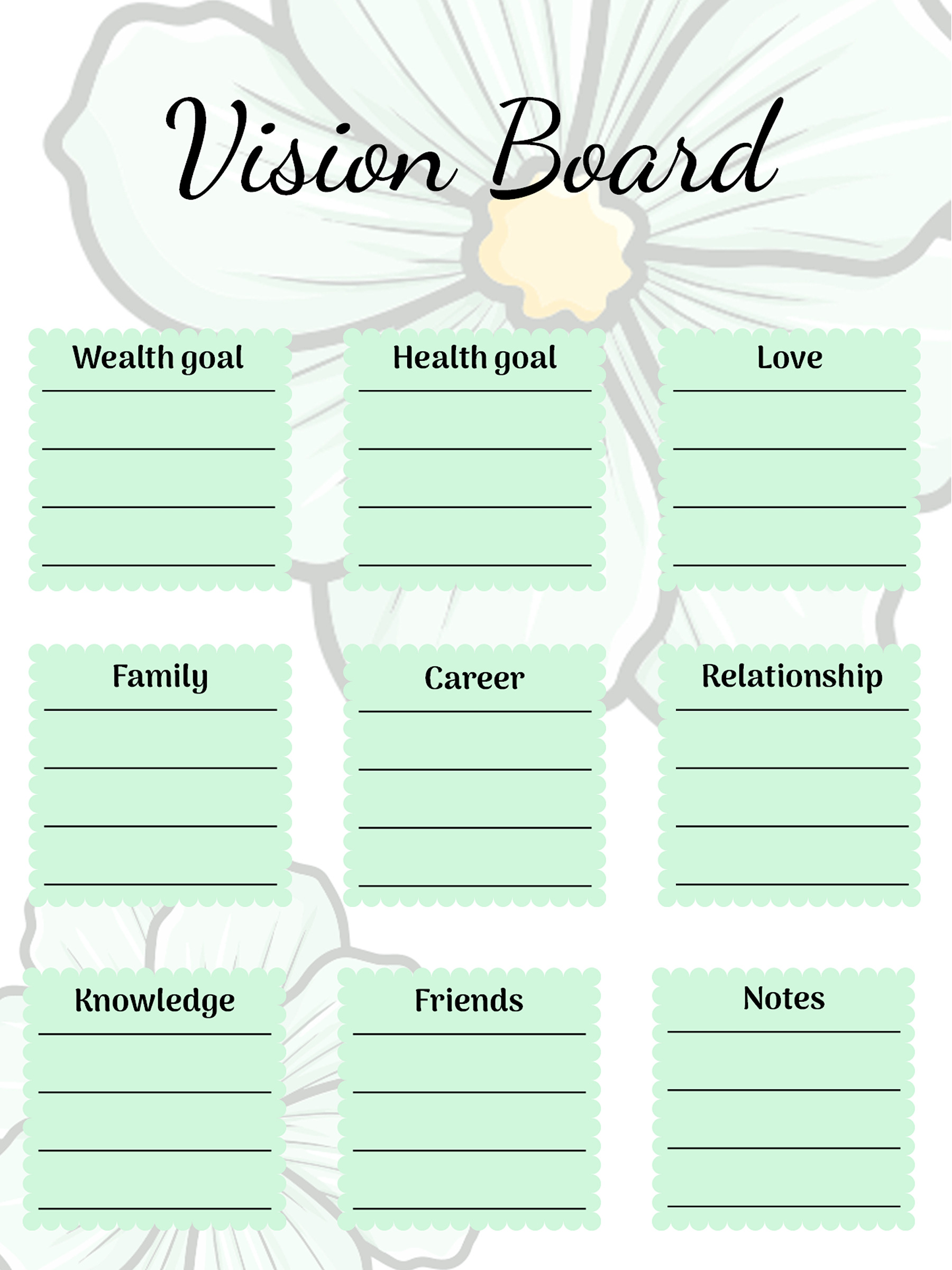
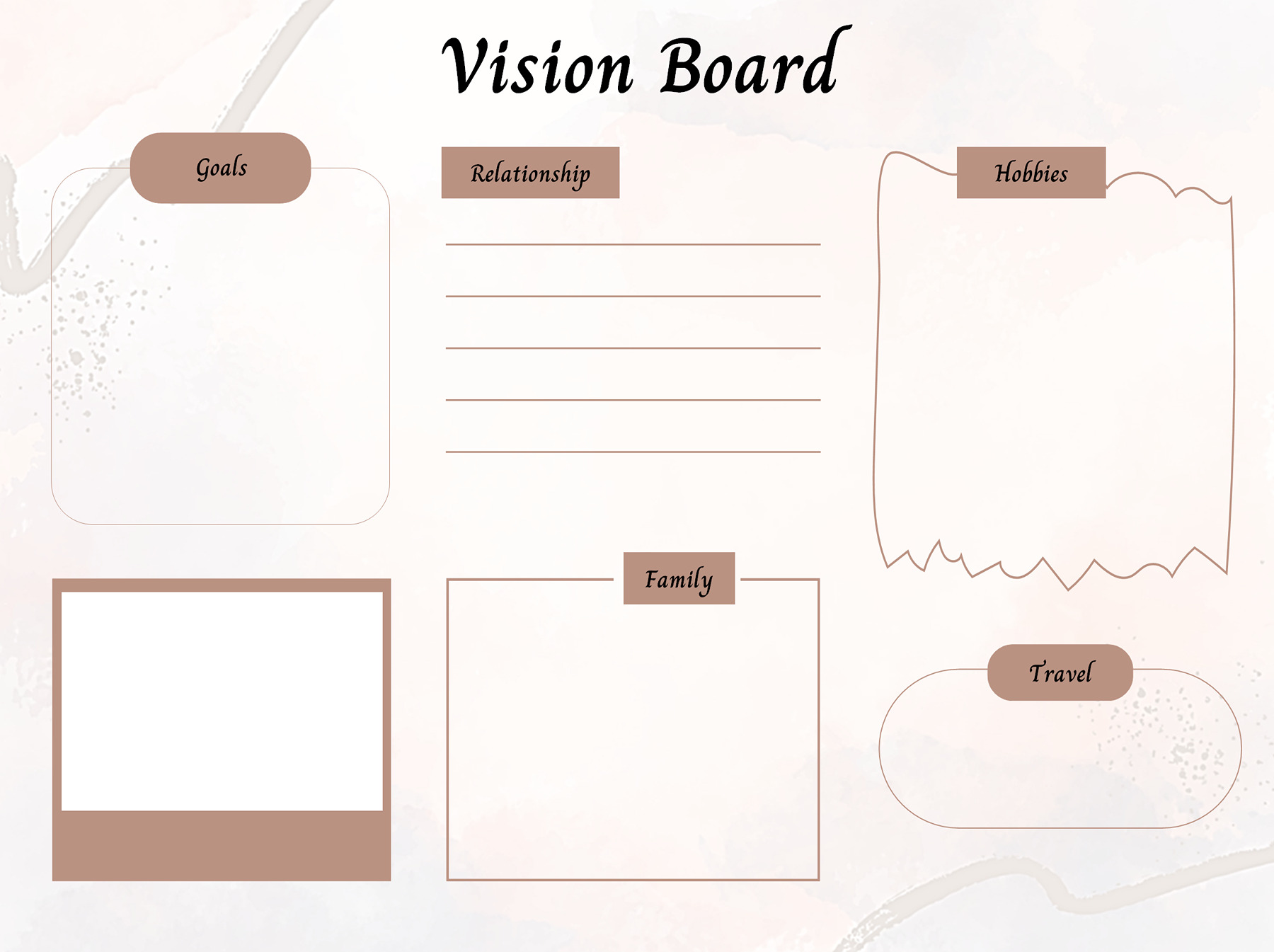
If a blank page leaves you stuck, try a layout with prompts. Templates 01, 02 and 06 already divide the board into life areas. You can write under the headings that fit your situation and leave the others empty.
If you already know the themes you want, an open arrangement gives you more freedom. Templates 04, 05, 07 and 09 leave the categories to you. That might mean pictures for a trip, a few words about a creative project, or reminders of how you want to spend an ordinary week.
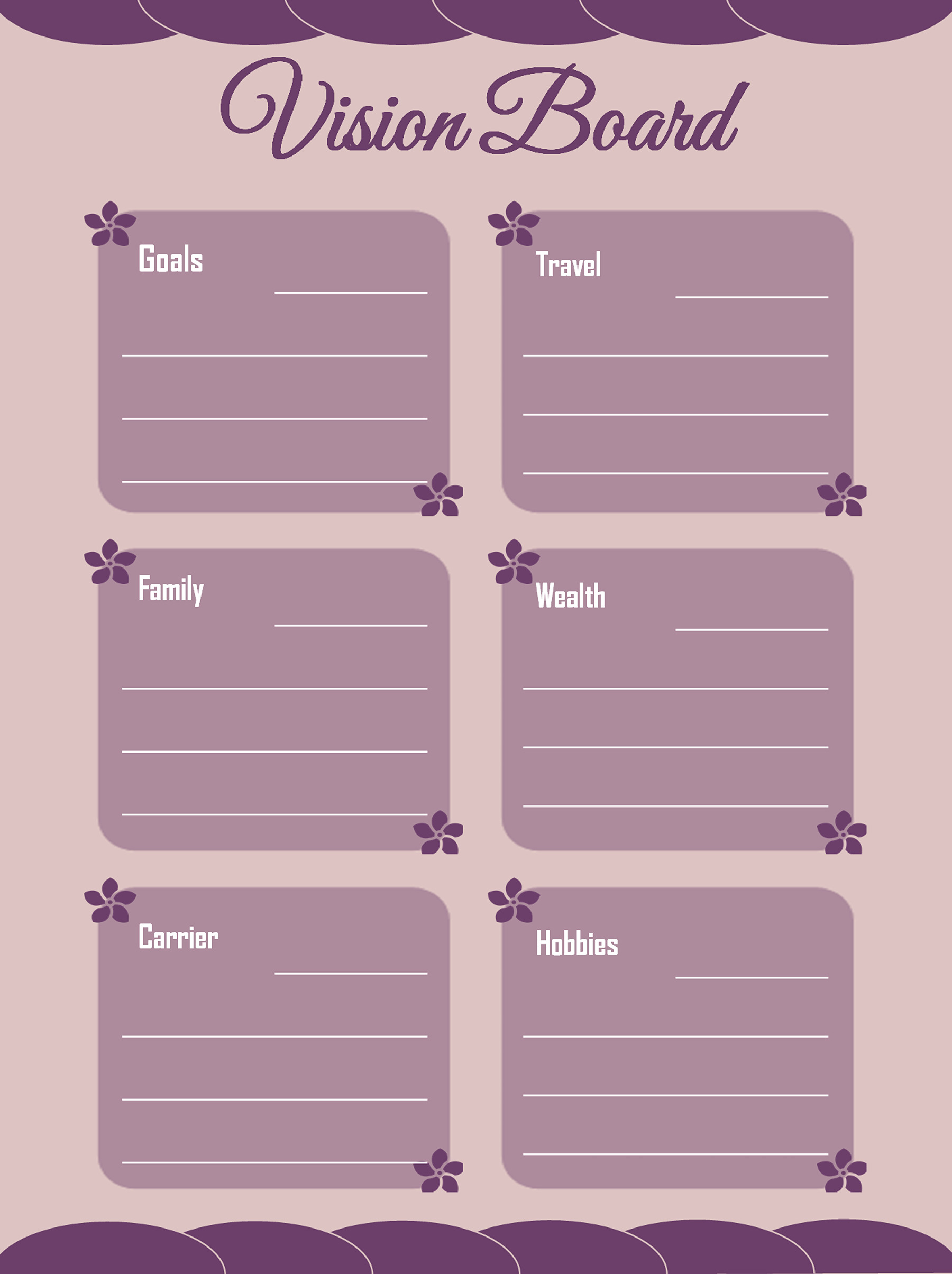
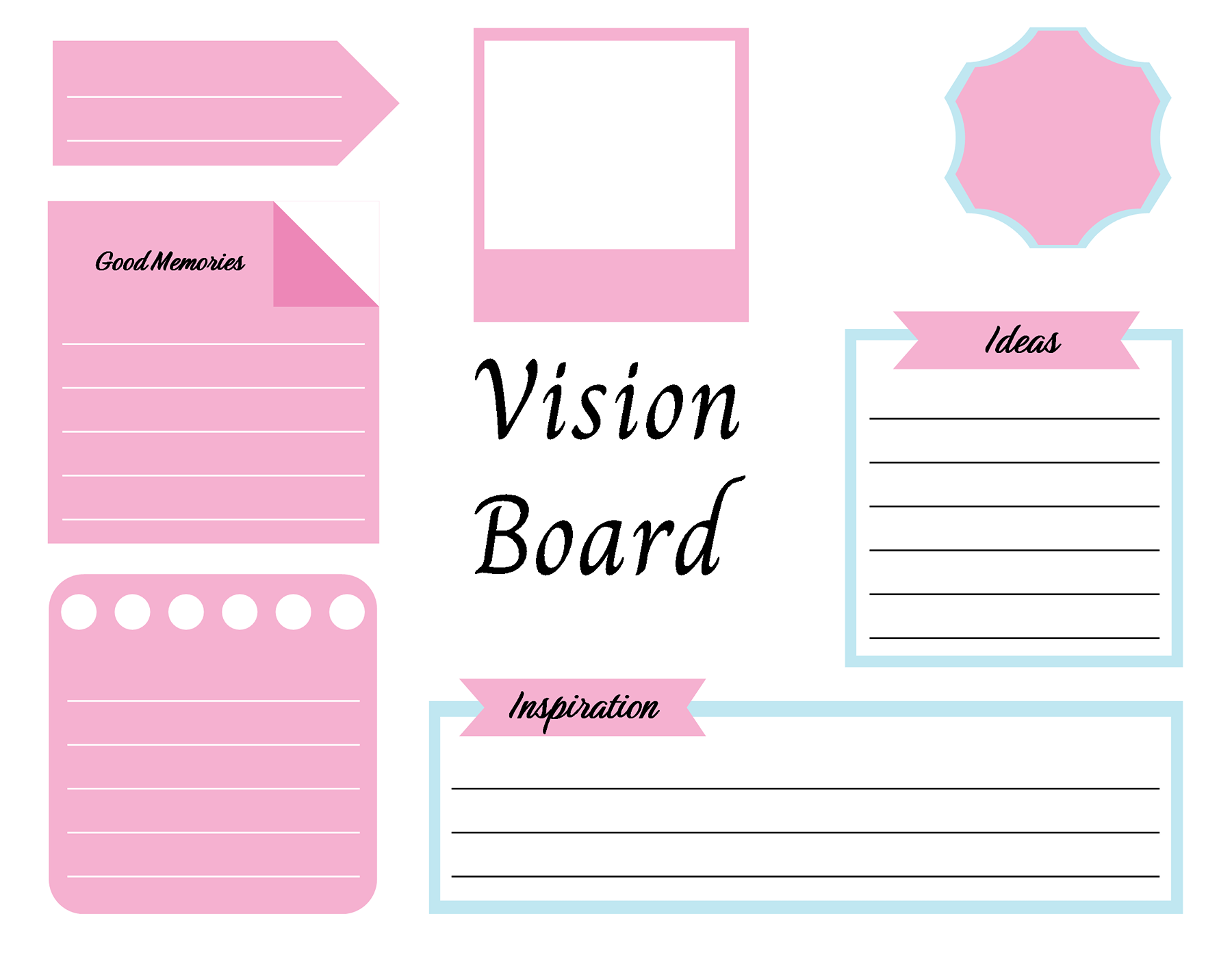
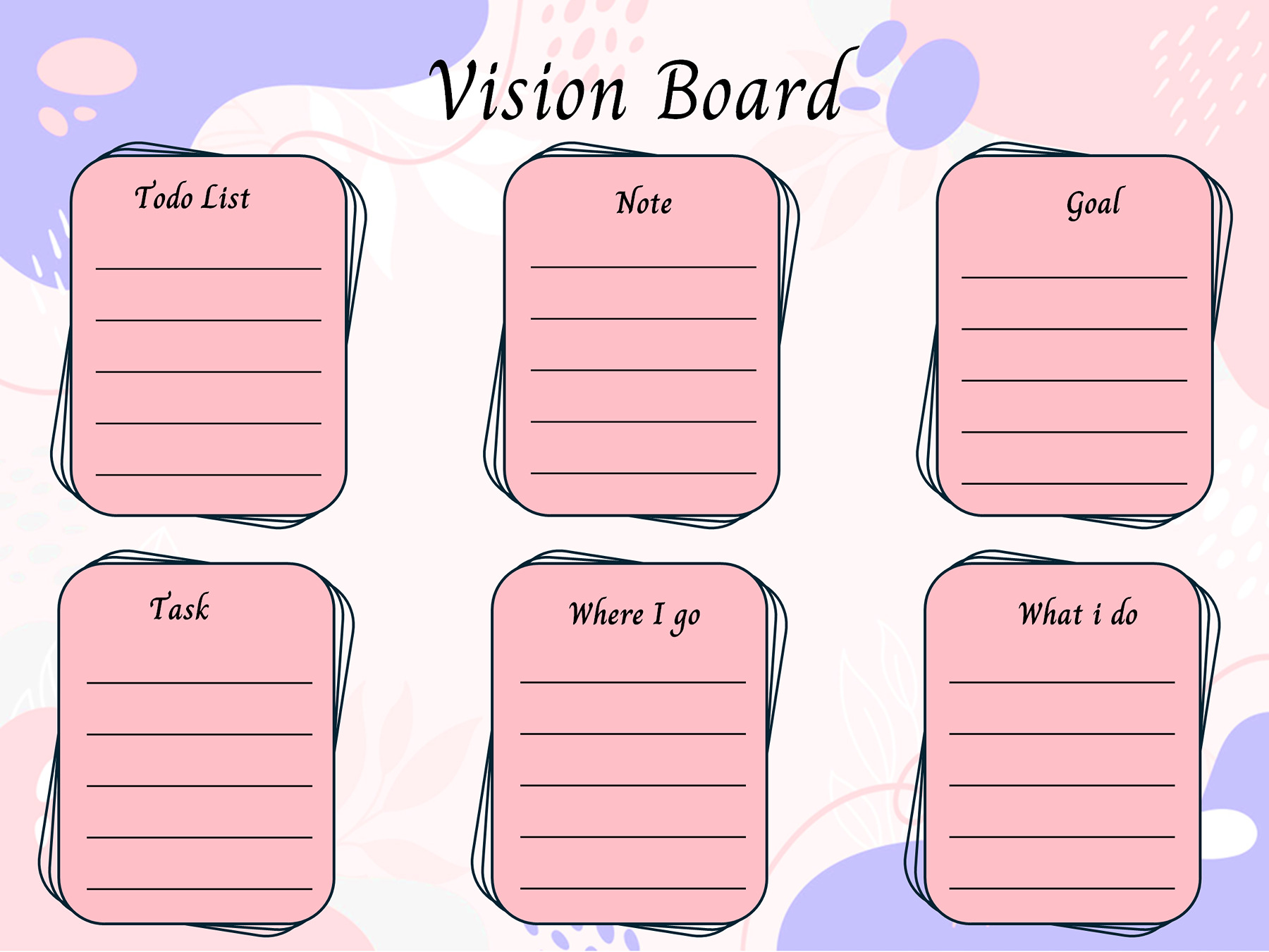
The remaining layouts make different connections. Template 03 places a main goal beside space for travel, budget notes, things to try and a brain dump. Template 08 combines ideas, inspiration and memories. Template 10 brings a goal, tasks, a to-do list and notes onto the same board.
| What you want to put on the board | Layouts to consider | What to look for |
|---|---|---|
| Written priorities across life areas | 01, 02, 06 | Preset categories that help you begin |
| Your own themes, captions or pictures | 04, 05, 07, 09 | Open panels, frames or lined shapes |
| Ideas connected to a goal or reflection | 03, 08, 10 | Main-goal, inspiration or task prompts |
The useful distinction is how much guidance you want from the page. Lined panels give you room to write; open frames give you room to choose your own visual reminders. Pick the structure you will actually use.
Explore the ten vision board layouts
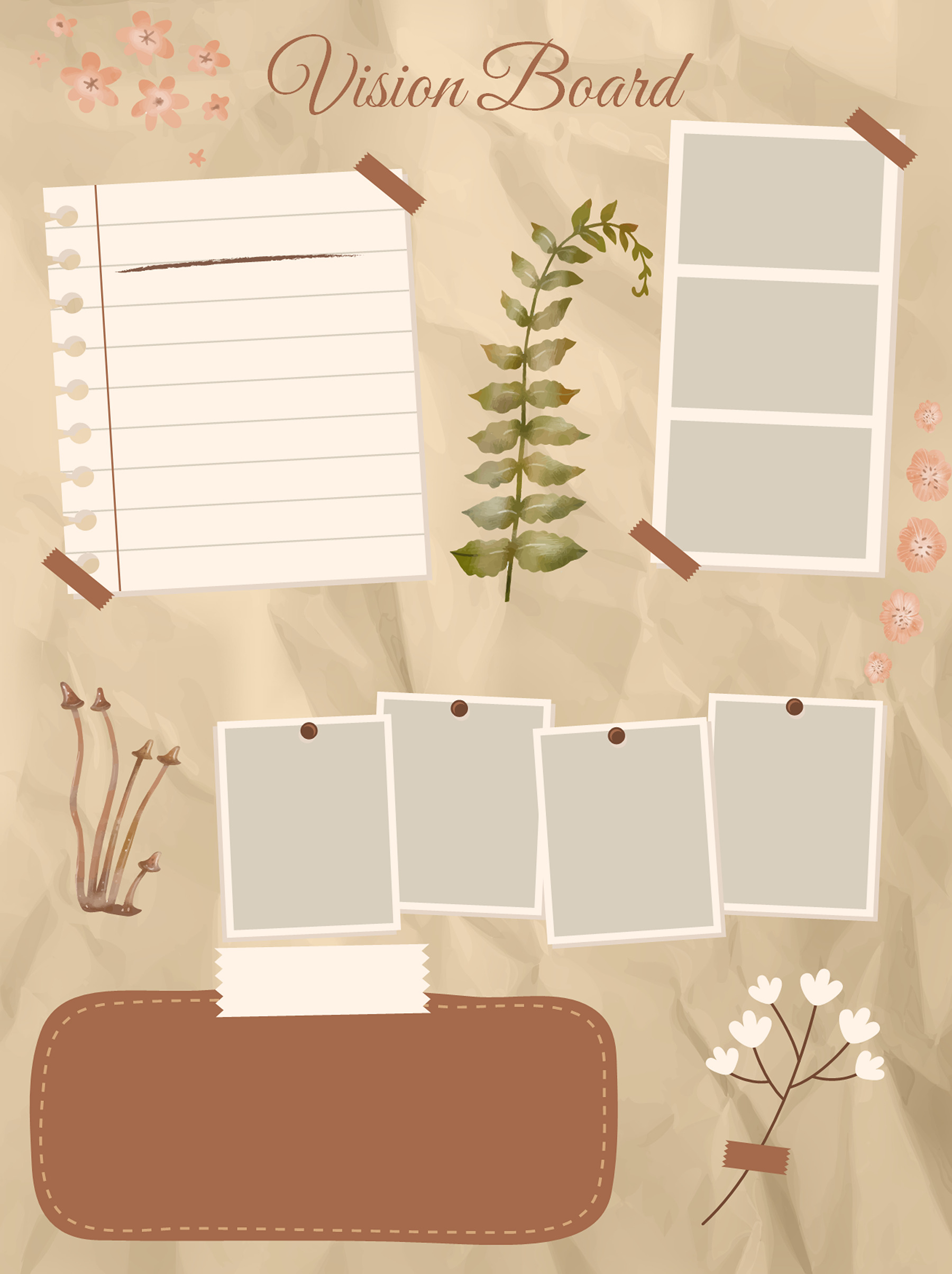
Template 01 has nine boxes for life areas and notes. Template 02 uses six larger category panels, while the landscape layout in 06 combines categories with a photo frame. These are sensible starting points when you want to consider several parts of life without arranging every section yourself.
For a board organized around one main intention, look at 03. Its ultimate-goal area sits alongside travel, budget notes, things to try and a brain dump. The budget space can hold a rough reminder or a figure you have worked out elsewhere; it is a writing area rather than a calculator.
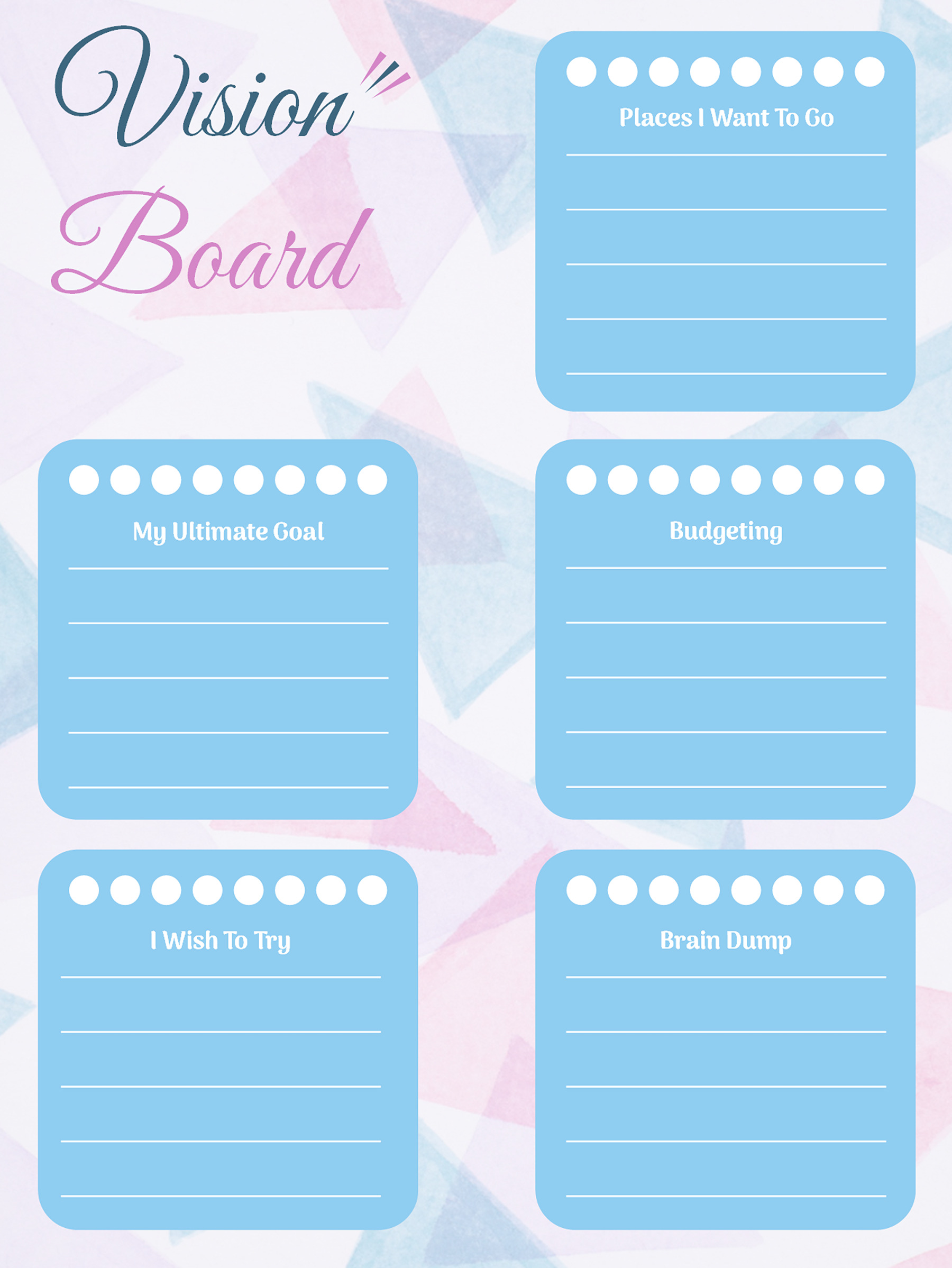
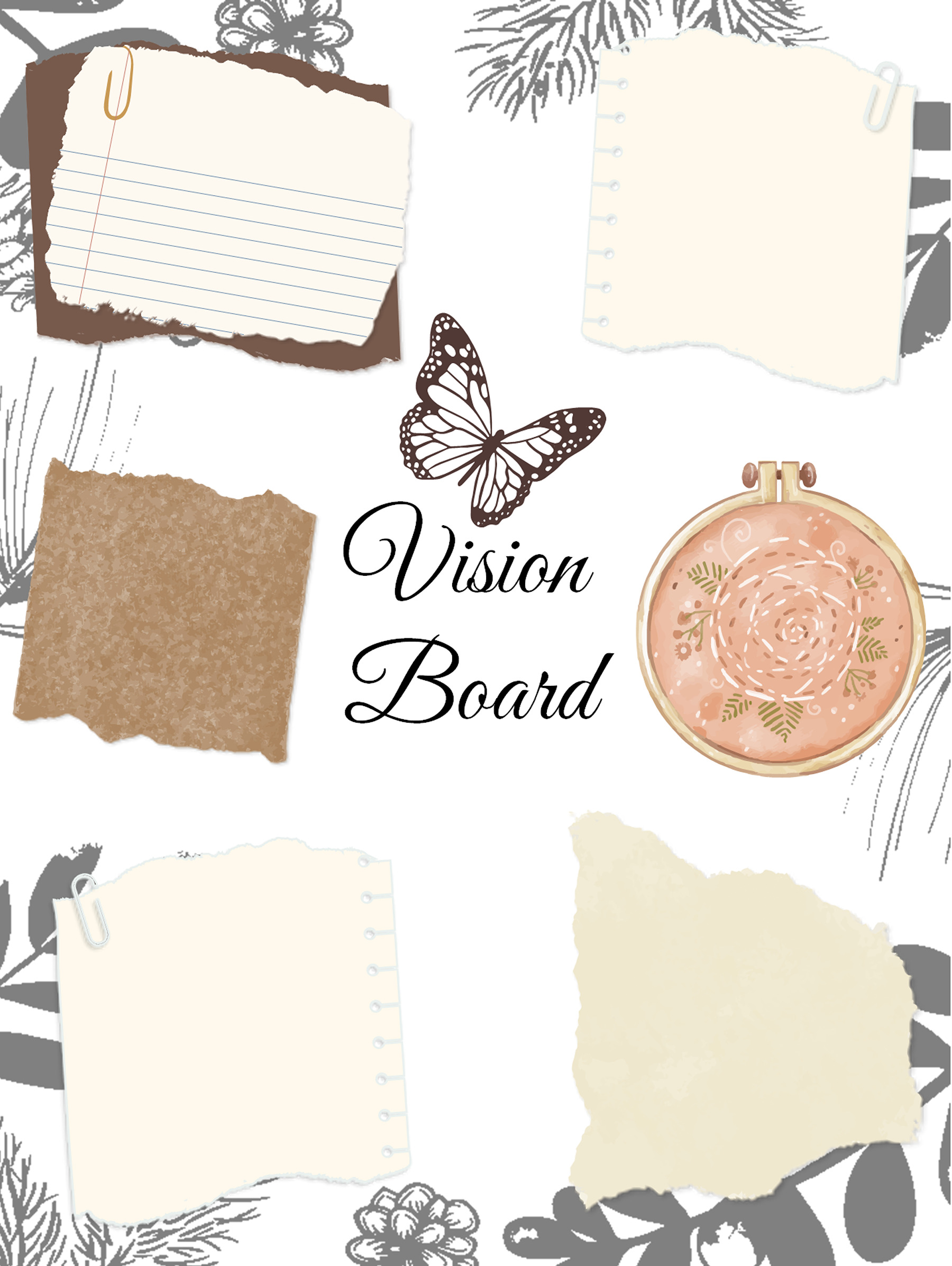
Templates 04 and 05 suit a mix of pictures and short captions. The first uses an open scrapbook arrangement with decorative paper shapes. The second combines photo frames with a lined note area, so you can keep a written thought beside the images.
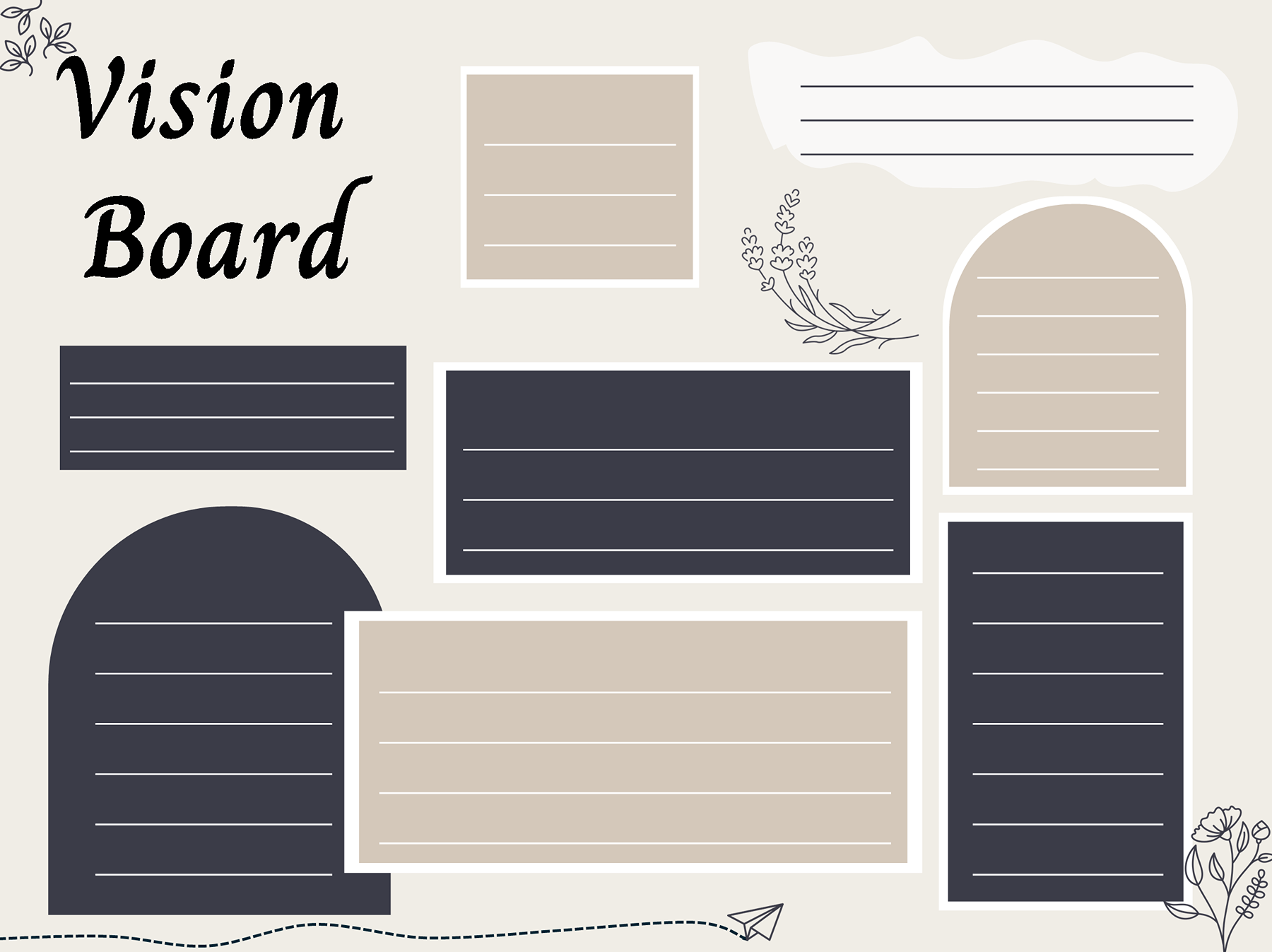
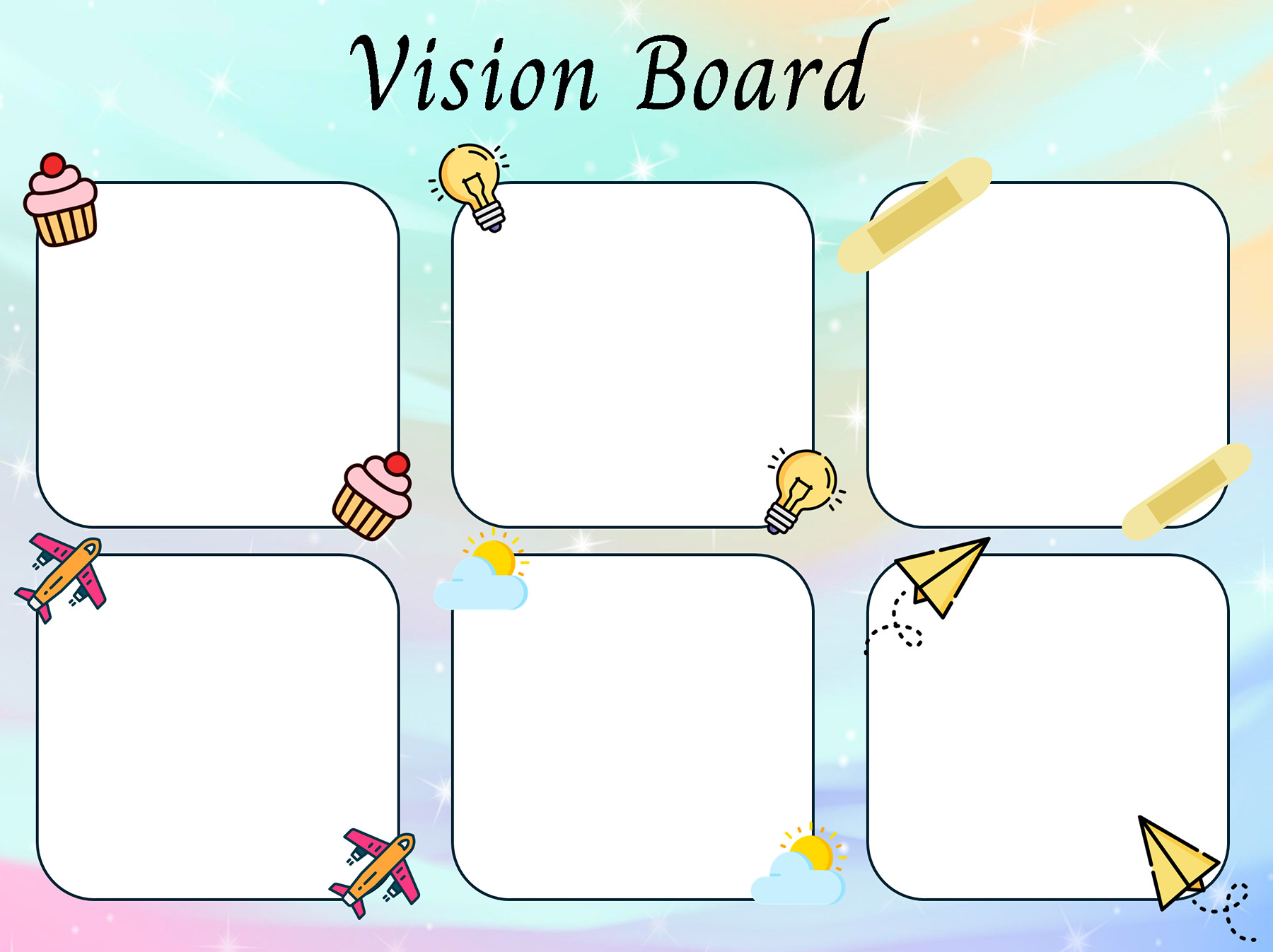
You can assign your own subjects to the lined shapes in 07 or the six unlabeled panels in 09. If you want to collect what sparks an idea, 08 gives you separate places for ideas, inspiration and memories. Template 10 is the option to look at when you want the board to show the work behind a goal: it includes Goal, Task, Todo List and notes prompts.
The collection below keeps all ten layouts together. Compare the numbered preview with the description, then choose PowerPoint or the linked Google Slides option.
Vision Board Template 01
Vision Board Template 02
Vision Board Template 03
Vision Board Template 04
Vision Board Template 05
Vision Board Template 06
Vision Board Template 07
Vision Board Template 08
Vision Board Template 09
Vision Board Template 10
Fill your board with specific reminders
Start with a few priorities you can explain in your own words. “Learn something new” might become “finish the beginner pottery course.” A picture of a handmade bowl can then stand for that particular intention, rather than an idea you may forget once the board is finished.
Use a short caption when an image needs context. A photograph of a quiet room could mean “make space for reading,” “rearrange the spare room,” or “spend less time on my phone.” The caption tells you which of those you intended.
You don’t have to fill every space. On a category-led board, use the areas that matter now. On an open collage, give a few images enough room to be recognizable instead of squeezing in more pictures simply because there is space.
Try selecting the part you want to change before filling the whole board. A caption may be a text box, while a decorative label may be embedded in an image. If that label is not editable, use a writable panel for your own caption.
Give one goal a next action
A goal can be clear and still leave you wondering where to begin. Template 10 helps you put an action beside it. Here is a fictional example for someone preparing a short portfolio:
- Goal: finish a short portfolio.
- Task: select three projects to include.
- Todo List: draft one caption for each project.
- Note: ask a colleague for feedback on the first draft.
The board now contains something you can do in the next work session. “Select three projects” is easier to begin than repeatedly looking at a picture that stands for career progress.
If you want to think through what might interrupt that action, WOOP’s practice guidance offers an optional process: Wish, Outcome, Obstacle and Plan. For this fictional portfolio goal, the obstacle might be getting drawn into scrolling during the evening work period. A plan could be: “If I notice myself scrolling, I will open the next caption draft and work on it for ten minutes.”
You can keep that planning sentence in your notes. These layouts are not official WOOP worksheets, and arranging a collage does not by itself guarantee that a goal will happen.
Keep the board useful as priorities change
Put the board somewhere you can return to it, whether that is the PowerPoint file or your working Google Slides copy. When you look at it again, choose one reminder and check whether its next action still makes sense. You may have completed it, learned something new, or changed your mind about the goal.
Update the words or image when the meaning has changed. There is no need to remake the whole board on a fixed schedule or keep a goal that no longer fits.
Start with a board for one priority and a next step you can explain. You can add to it after that first version is useful.
About This Article