A wedding budget becomes easier to read when an estimate, a final charge and a payment each have a clear place. These ten document layouts offer different combinations of those fields, from short expense lists to tables for estimated and actual costs, deposits or amounts paid.
Use the comparison below to choose a layout before copying in vendor figures. The downloads include Word, ODT and Google Docs versions, plus an additional Word document copy for each design. Enter and check the figures yourself; the inspected tables don’t contain automatic calculations.
Choose the record you need
| Your main job | Layouts to consider | Check before using |
|---|---|---|
| Make an initial expense list | 01, 02 or 03 | Decide what each amount represents and record it consistently. |
| Compare planned and actual costs | 06, 08, 09 or 10 | Use the same definition of “actual” throughout the table. |
| Follow payments as well as costs | 04, 05 or 07 | A deposit or part-payment doesn’t necessarily settle the full charge. |
If you’re still gathering quotes, a simple list may be enough. Once deposits start leaving your account, choose fields that help you see both the total cost and what remains to be paid.
Compare the ten layouts
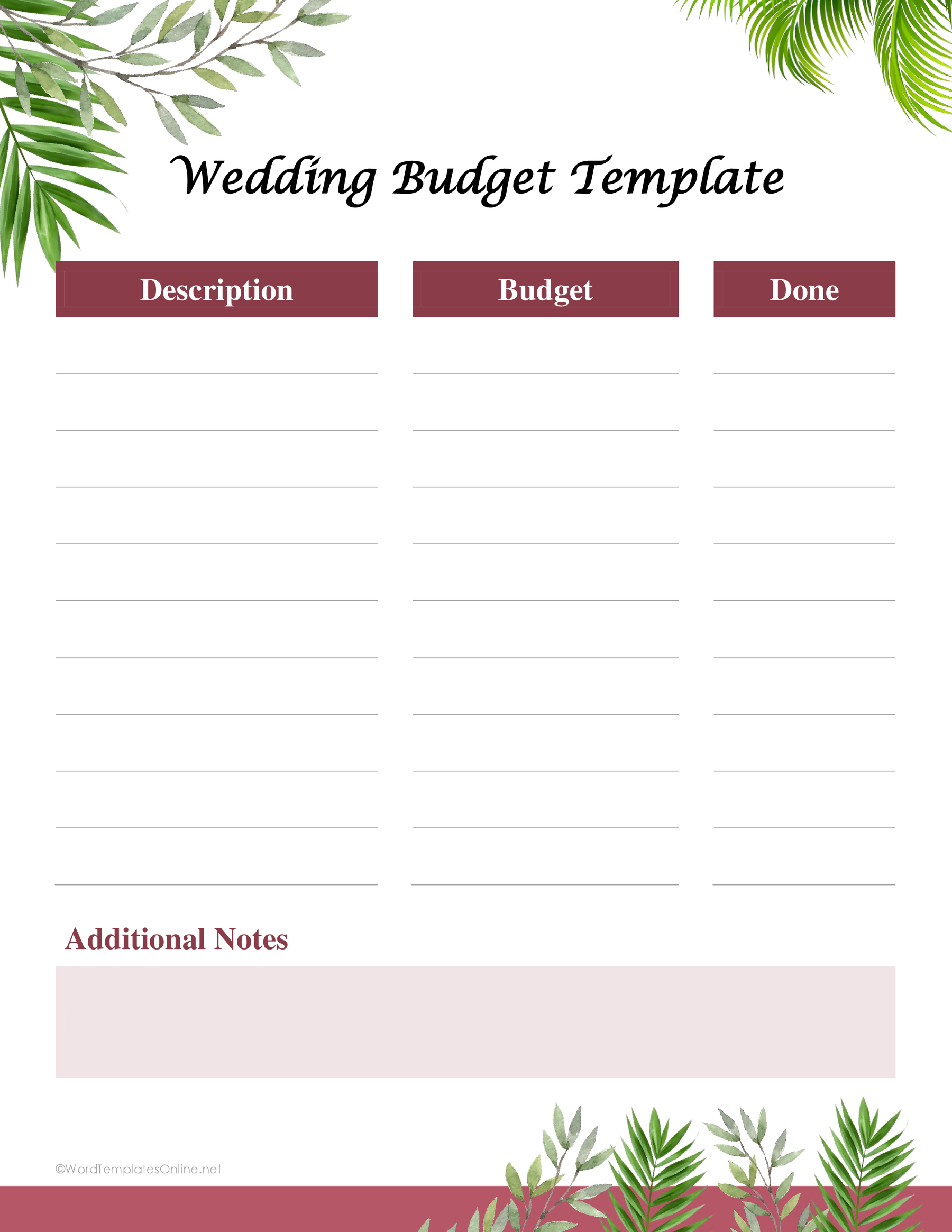
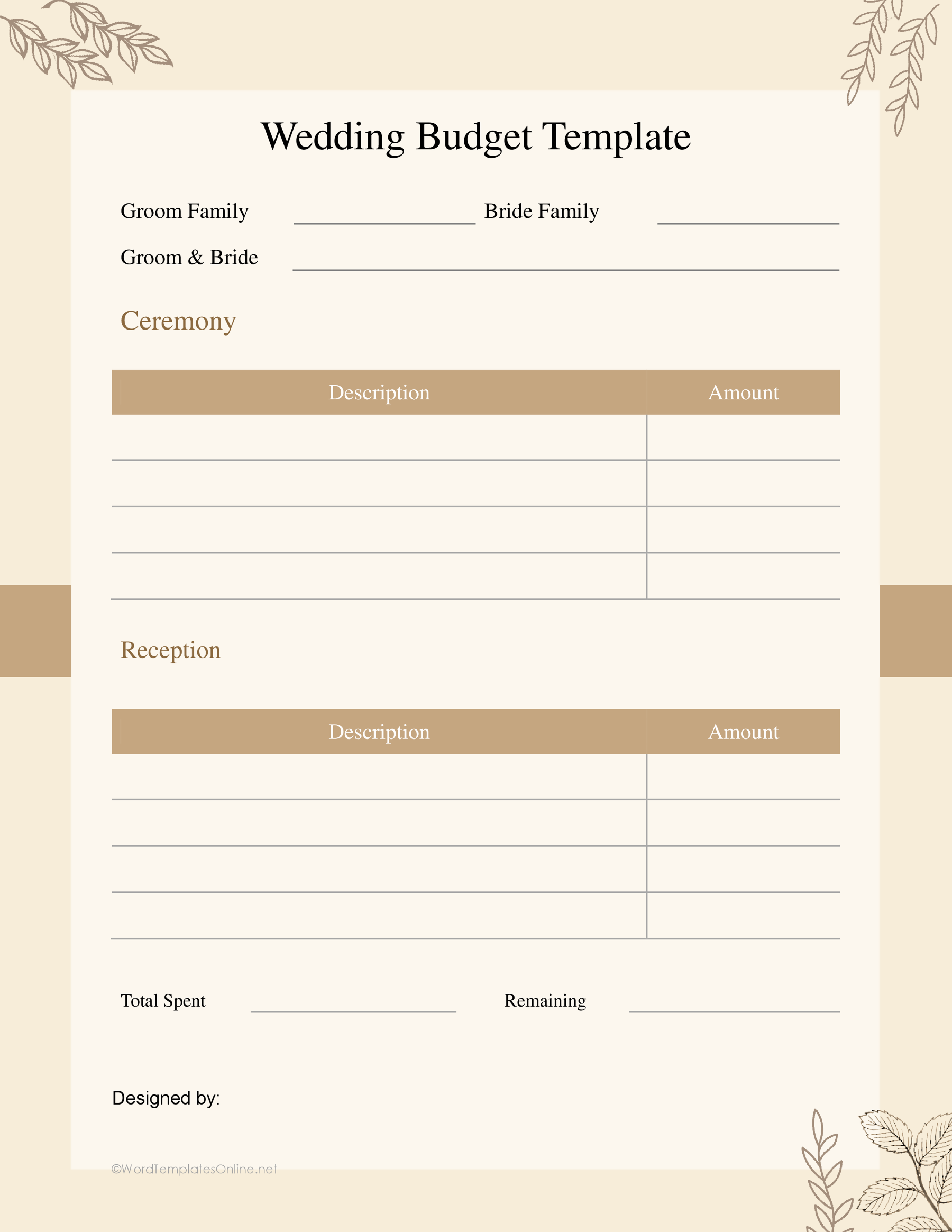
Layout 01 has Description, Budget, Done and Notes columns. Use Done to mean the action is complete; the label alone doesn’t establish that an expense is fully paid. Layout 02 separates ceremony and reception entries and includes contributor labels. Use those labels to record arrangements you’ve agreed, rather than treating them as rules about who should pay. Layout 03 groups amounts under attire, ceremony, reception, decoration and other expenses.
For more detailed comparisons, 06 provides blank categories alongside Description, Estimated, Actual and Notes. You can choose categories that match your plans. Layout 08 is narrower, covering apparel and decoration with estimated and actual figures. In 09, Budget, Actual and Difference sit together. Agree on a subtraction order before filling the difference column. Layout 10 organizes ceremony, reception and decoration costs. It uses Cost, Budget and Actual labels; decide what Cost will record before entering figures so you don’t mistake a repeated amount for another expense.
The payment-focused choices work differently. Layout 04 separates Estimated, Actual, Overspend, Deposit and Paid. Layout 05 pairs Amount with a Paid Yes/No choice, which needs an accompanying note if you have only paid part of a charge. Layout 07 includes Budget, Amount Paid and Due. Decide whether you’ll use Due for the remaining balance and note that convention; it isn’t labeled as a payment due date.
Wedding Budget 01
Wedding Budget 02
Wedding Budget 03
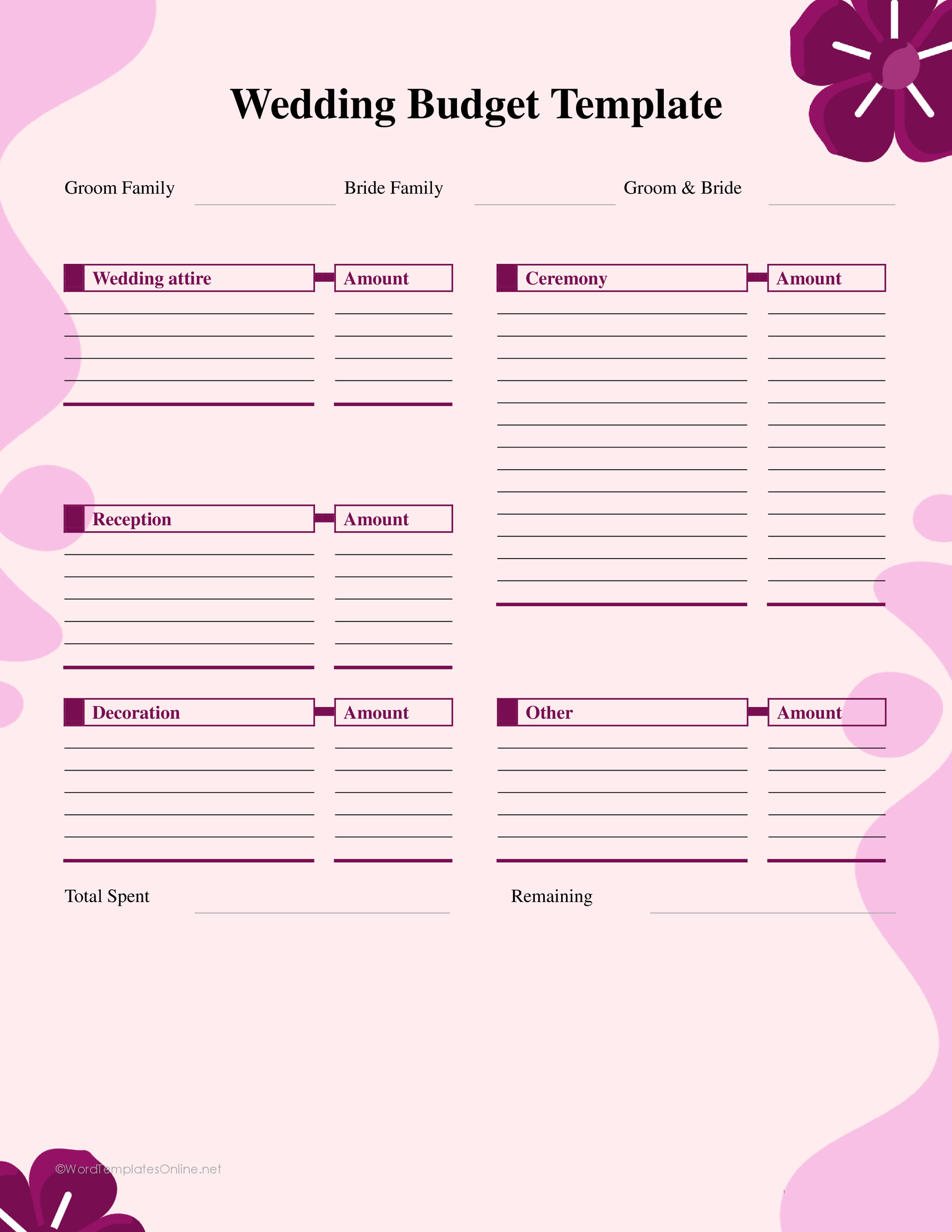
Wedding Budget 04
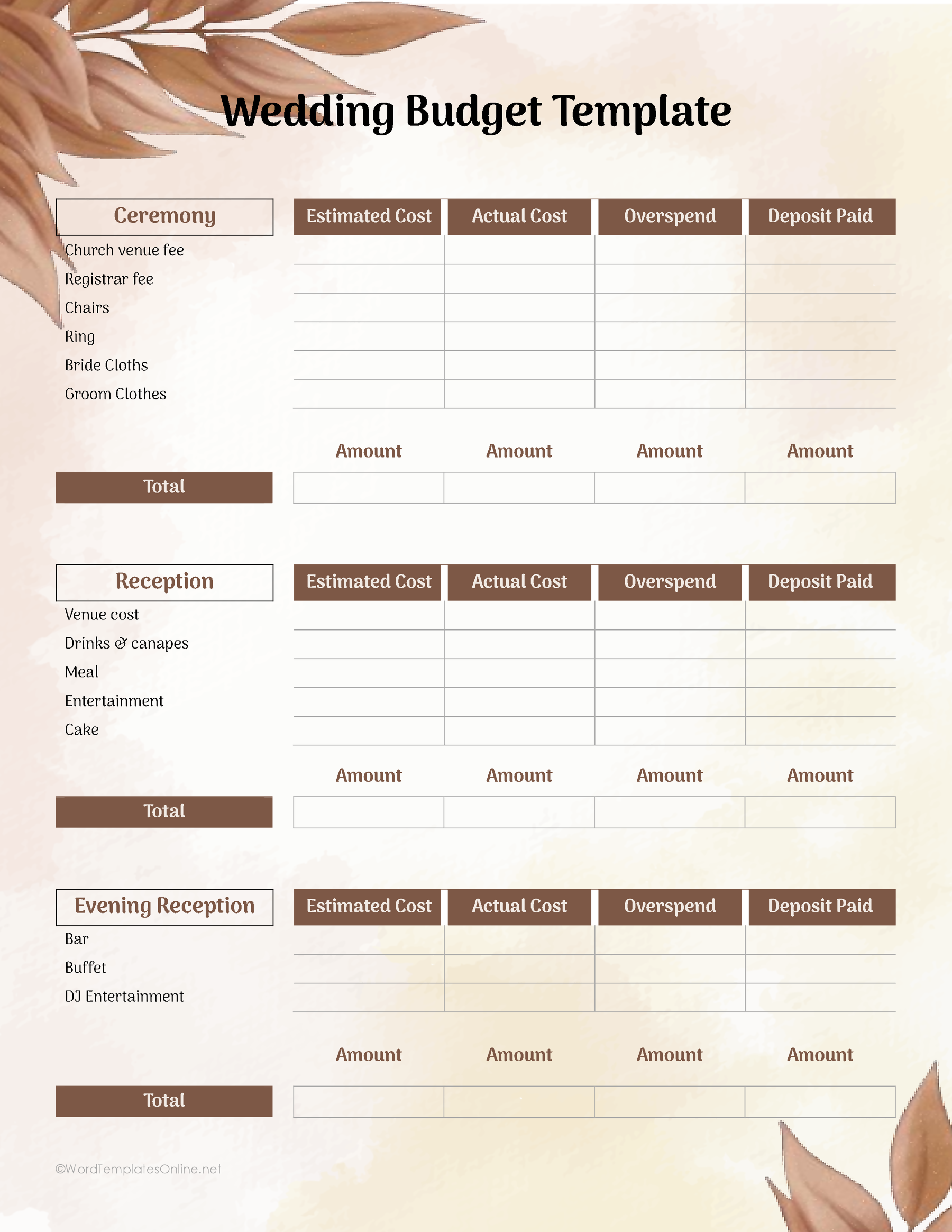
Wedding Budget 05
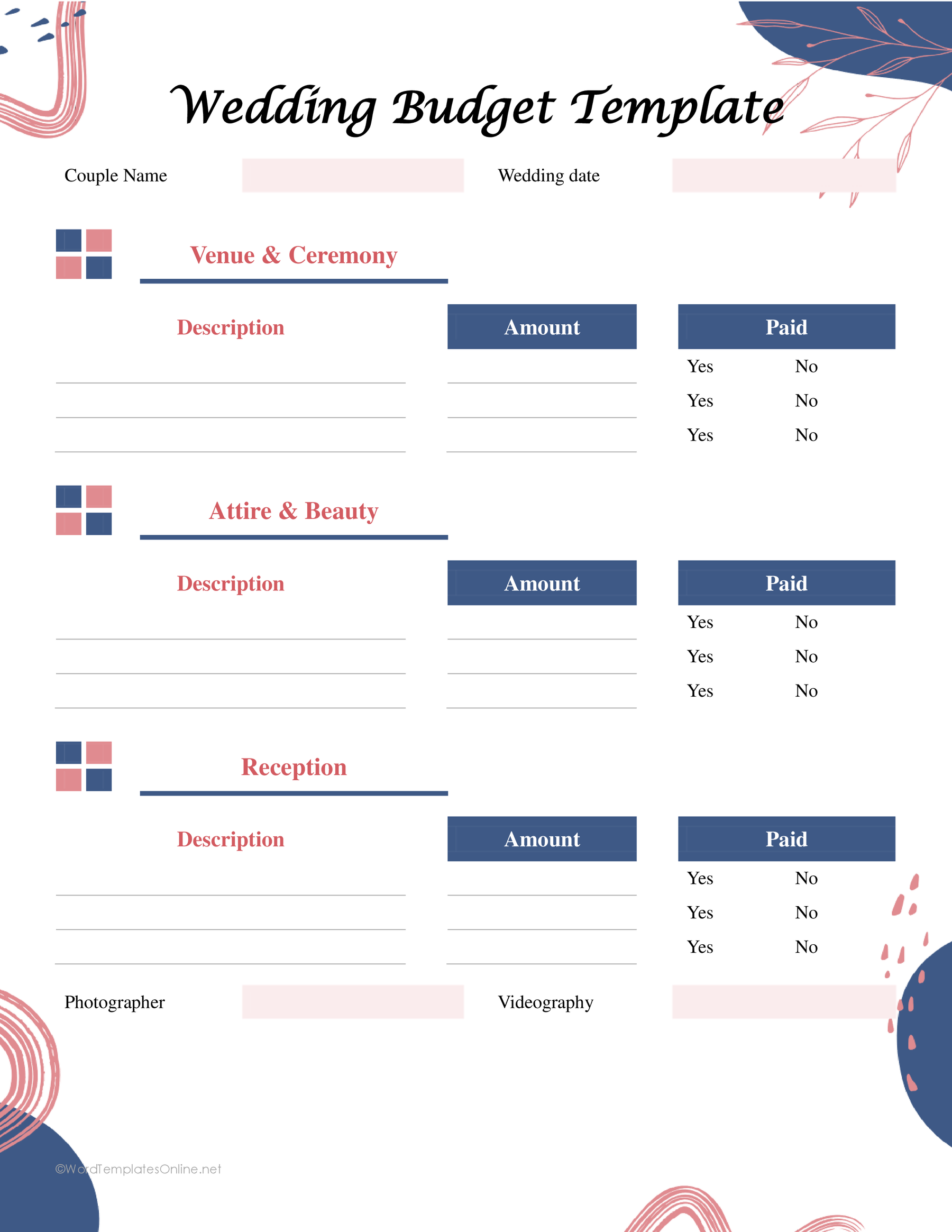
Wedding Budget 06
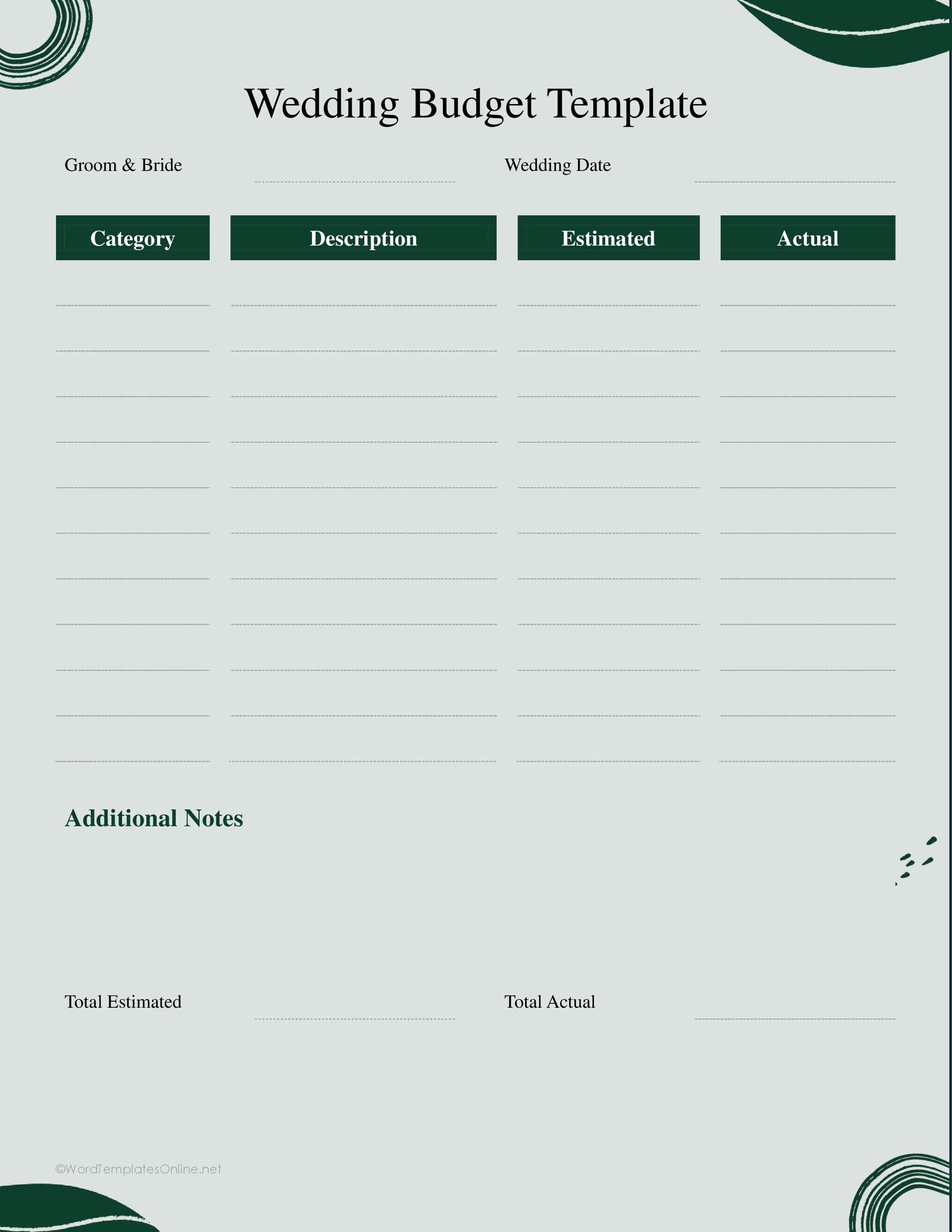
Wedding Budget 07
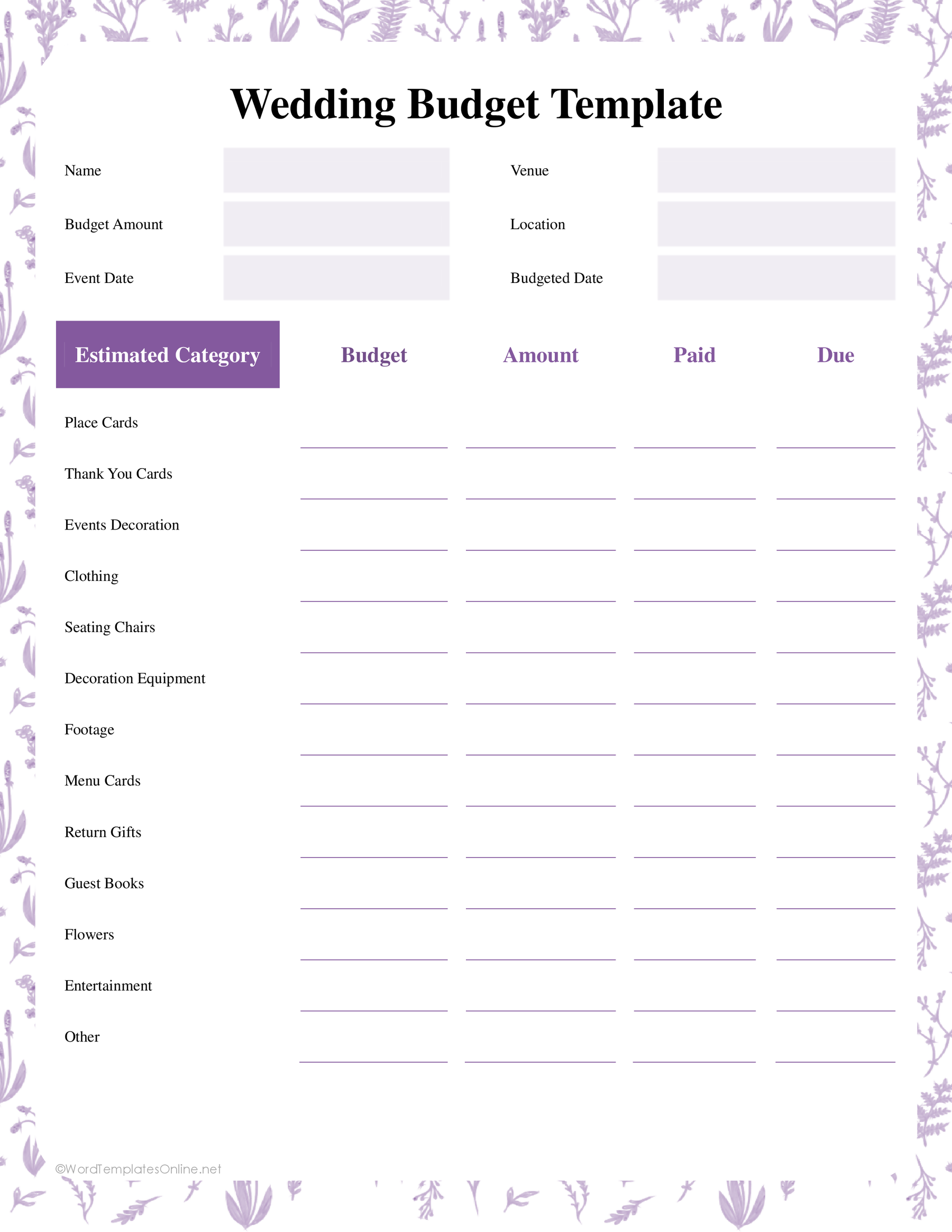
Wedding Budget 08
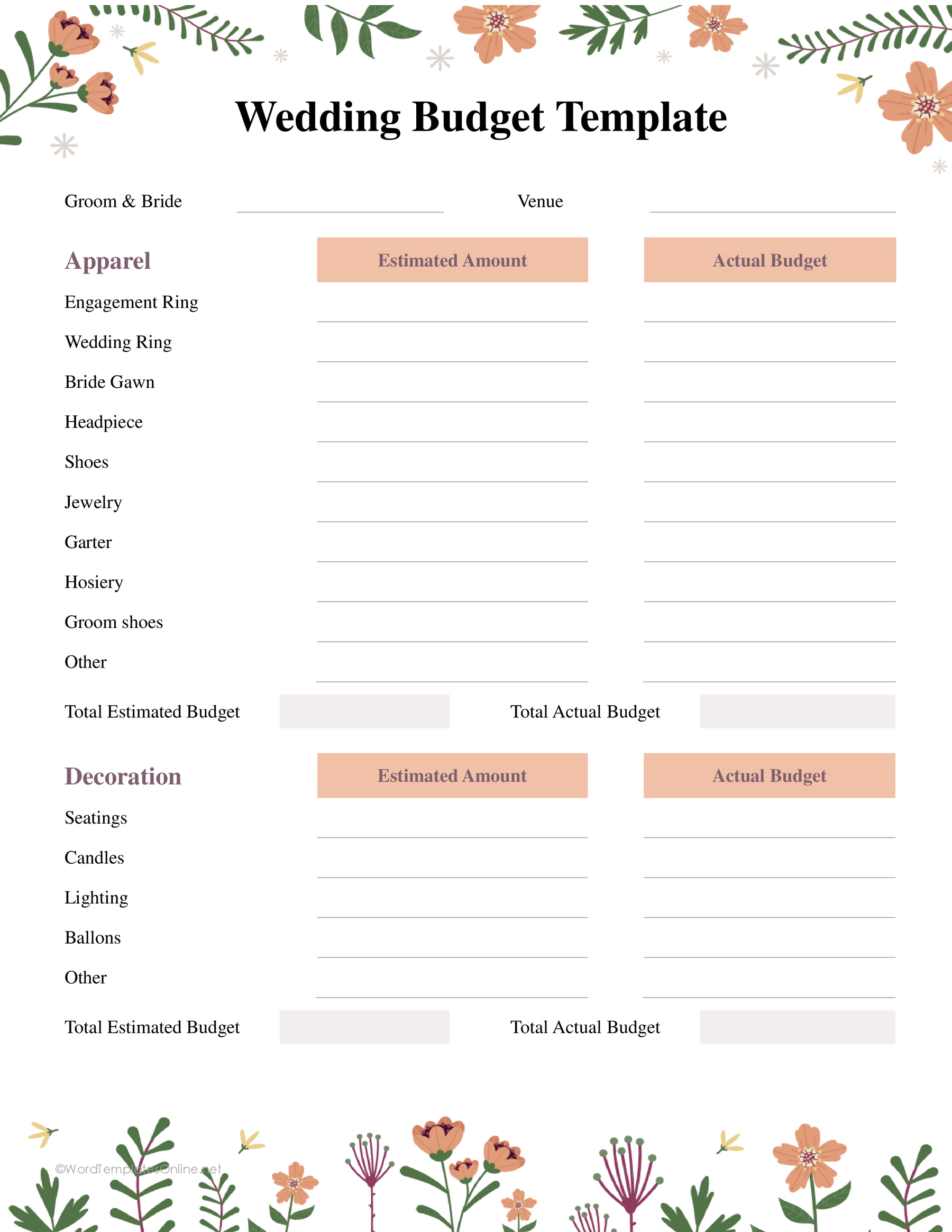
Wedding Budget 09
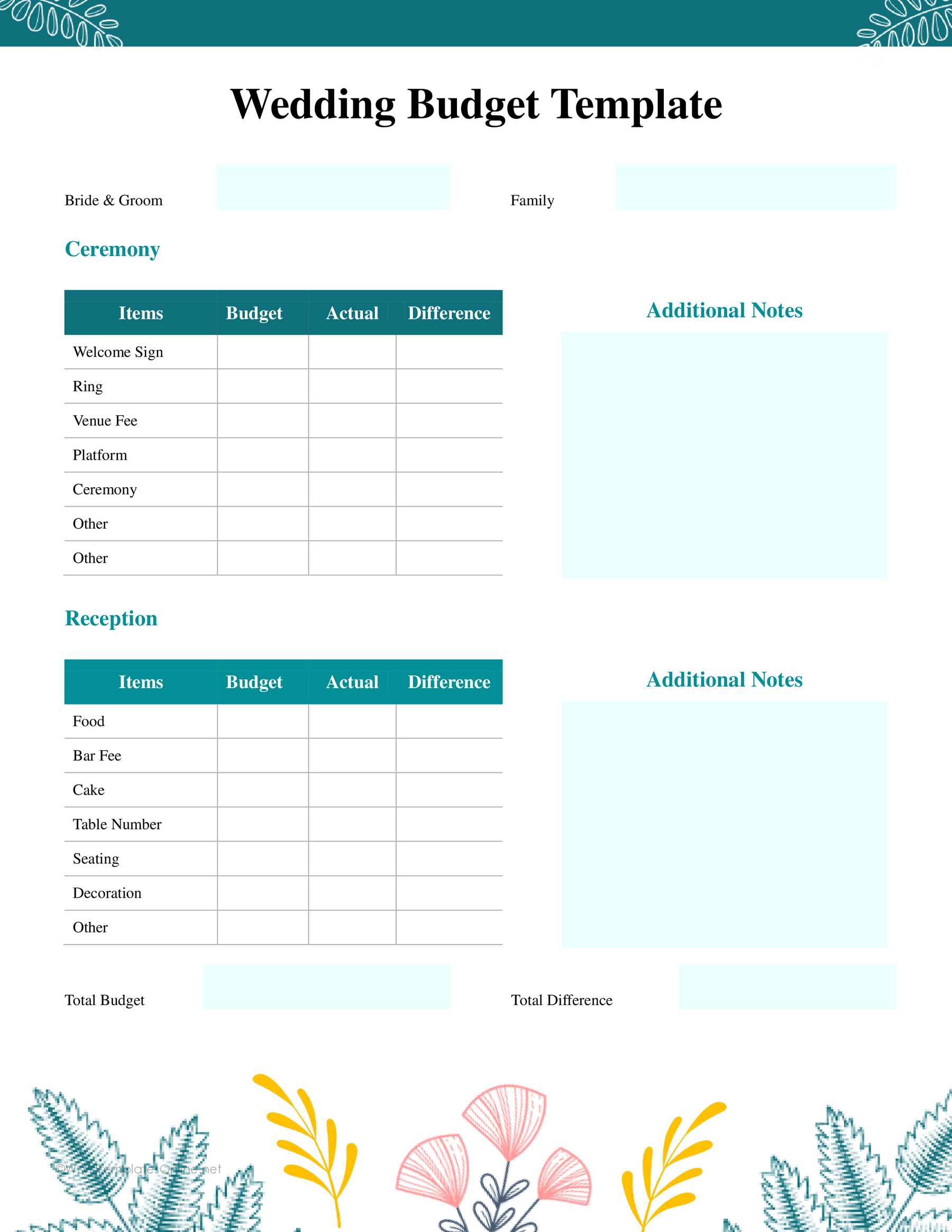
Wedding Budget 10
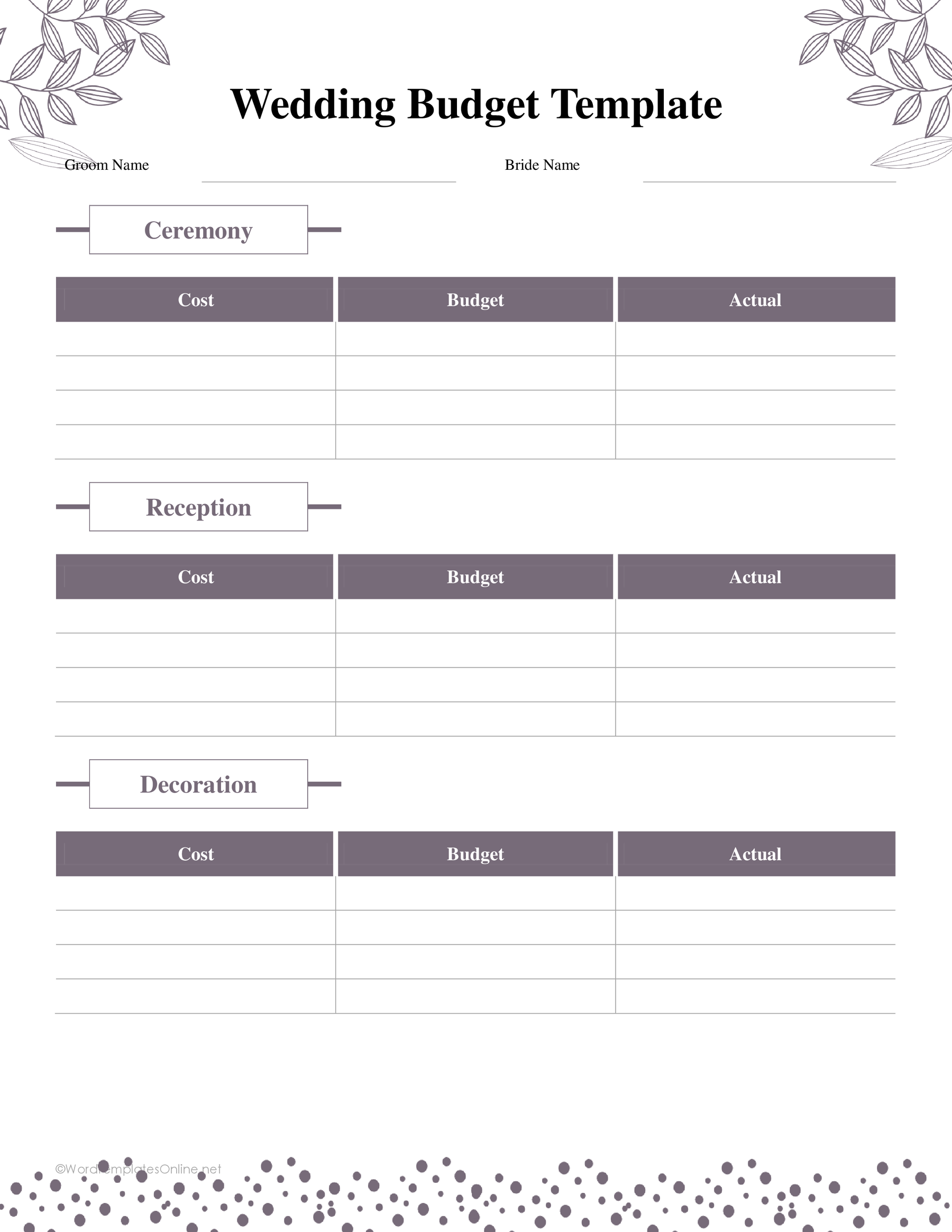
Separate the estimate, charge and payment
Here’s an invented example using one currency throughout. You allow 600 for flowers, receive a final invoice for 650 and have already paid a deposit of 100. The remaining balance is 550, and the final cost is 50 above your estimate.
In layout 04, enter 600 as Estimated, 650 as Actual, 50 as Overspend and 100 as Deposit. Mark Paid only when the full charge has been settled. Keep the remaining 550 in a suitable note or payment record so the deposit isn’t mistaken for completion.
The deposit is part of the 650 total. Adding it again would produce an incorrect cost of 750. This distinction matters when you total the whole wedding: add total charges to measure cost, and add payments separately when checking money already paid.
For layout 09, one workable convention is Actual minus Budget. In this example, 650 minus 600 gives a positive 50, meaning over budget. Write the convention in your working copy and use it for every row; don’t switch direction for items that came in below budget.
Fill the table from actual documents
Collect the quotes, invoices and payment receipts you already have, then enter one expense at a time. Give each row a description you’ll recognize later, such as “Florist — ceremony arrangements,” rather than an unexplained amount.
Keep estimated figures tied to the quote and actual figures tied to the agreed final charge. Check whether taxes, delivery and other listed charges are already included before adding them elsewhere. When a price is still provisional, say so in the notes instead of presenting it as final.
Receipts help you reconcile the payment record with what was actually paid. The CFPB’s spending tracker also uses receipts and recorded spending to help people review their expenses. Here, the practical task is to check each wedding entry against its supporting document, then total the rows and check the arithmetic. If the total doesn’t match your records, work through the entries one at a time. Look for a deposit counted twice or a charge added both to a vendor’s total and a separate row.
Keep payment deadlines clear
An unpaid balance and a payment deadline answer different questions. “550 due” tells you the amount still needed; it doesn’t tell you when to send it.
Record the vendor’s actual deadline in an available note or a separate payment calendar. Don’t assume a Budgeted Date label in layout 07 is a vendor’s deadline. Where a layout has only a Paid Yes/No choice, keep a dated record of part-payments so both people updating the budget can see what has happened.
Before paying or marking an item complete, compare the remaining amount with the latest invoice and your payment record. Update changed quotes and cancelled items so an old figure doesn’t survive in the total.
Choose a document or a spreadsheet
A document table can suit a budget you want to review, annotate or print. Choose the Word, ODT or Google Docs version that fits how you’ll work, and check the layout after entering longer vendor names and notes.
If you want a spreadsheet instead, browse WTO’s separate wedding budget spreadsheet collection. For these document layouts, begin with one real expense and check that you can distinguish its planned cost, final charge, payments and remaining balance before completing the rest.
About This Article